
Use this guide to check whether slow speeds are caused by WiFi coverage, router placement, your device, or the fibre connection.
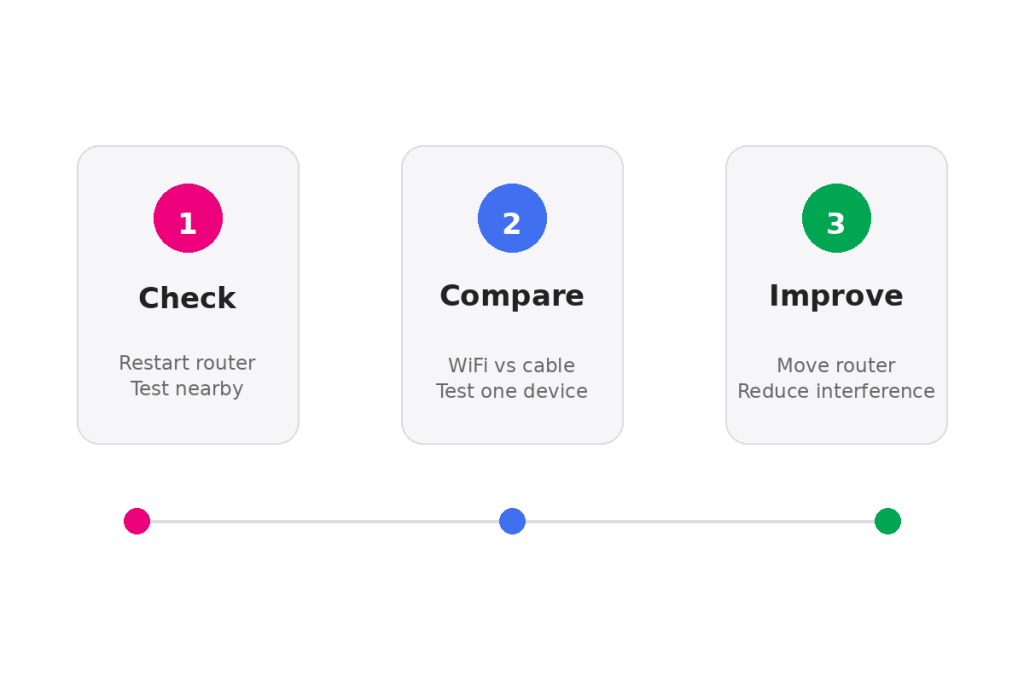
Start With These Quick Checks
- Restart your router and ONT, then wait a few minutes for the connection to restore.
- Move closer to the router and test again.
- Pause downloads, updates, cloud backups, streaming, and gaming while testing.
- Test with another device to check whether the issue is device-specific.
- Run more than one speed test, preferably at different times.
Fibre vs WiFi: Why Speeds Can Vary
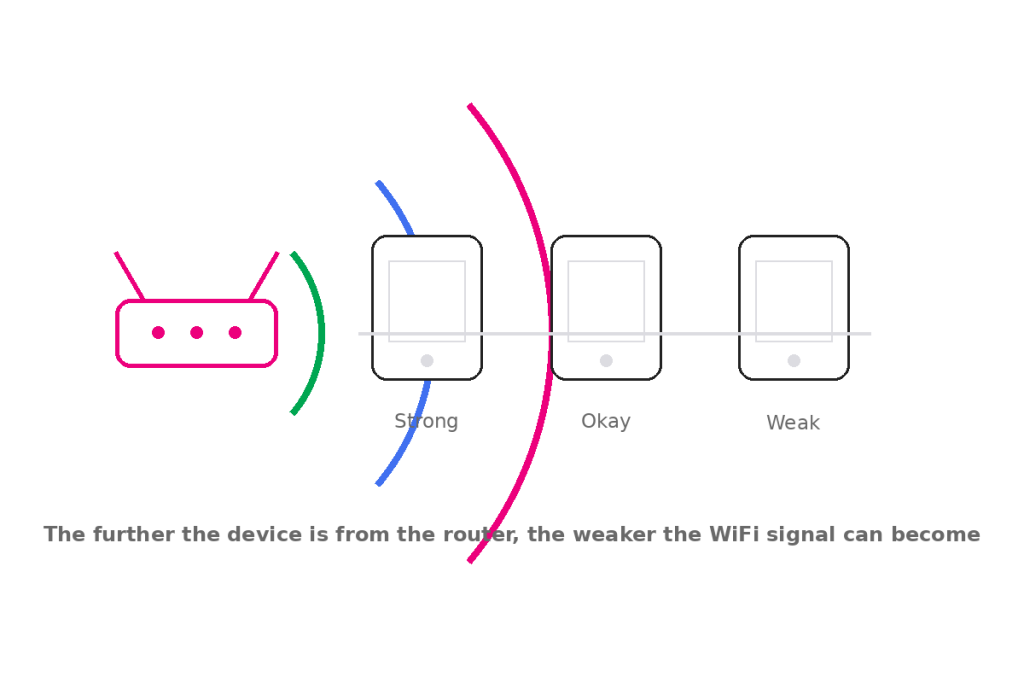
Fibre brings the internet connection into your home. WiFi shares that connection wirelessly to your devices. This means your fibre line can be working correctly, while your WiFi speed still varies because of distance, walls, interference, or the device being used.
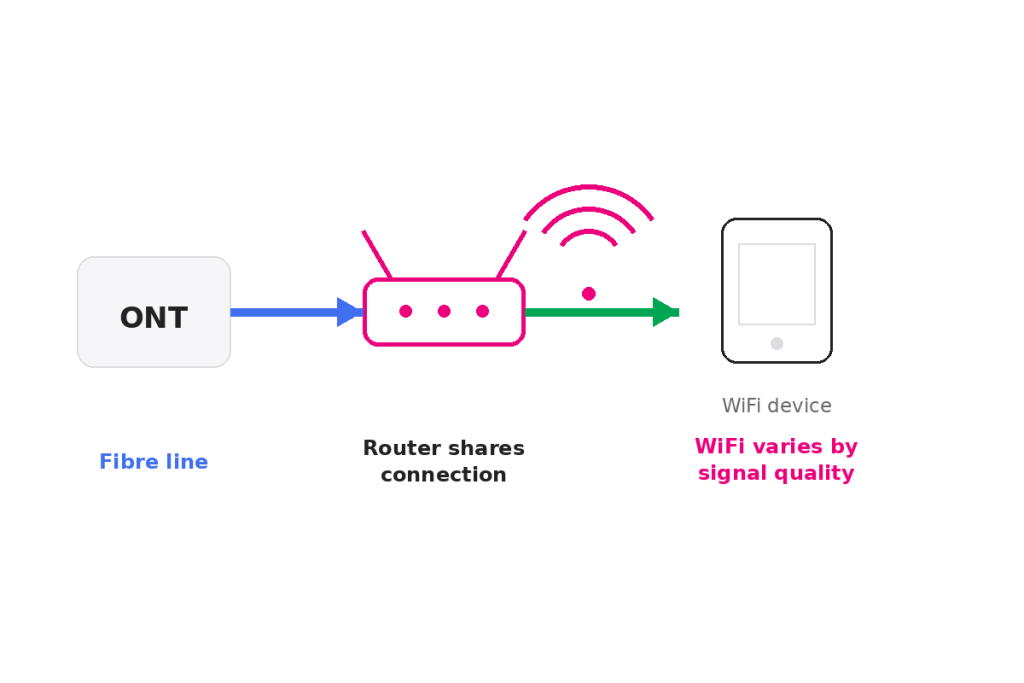
Best test: If possible, test with an Ethernet cable directly from the router. This gives the clearest view of the actual connection speed.
Improve Your WiFi Signal
Router placement makes a big difference. A router hidden in a cupboard, behind a TV, on the floor, or near thick walls will usually perform worse.
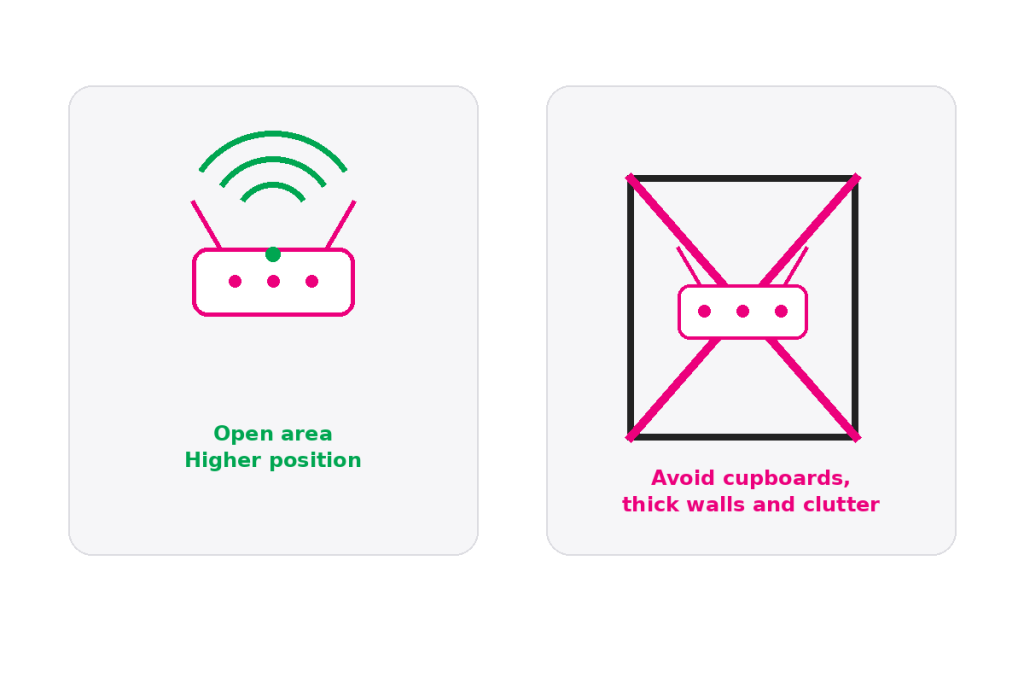
- Place the router in an open, central area.
- Keep it raised and away from the floor.
- Avoid cupboards, TV cabinets, mirrors, appliances, and thick walls.
- Use 5GHz when you are close to the router for better speed.
- Use 2.4GHz when you need better range through walls.
- For larger homes, consider a mesh WiFi solution instead of relying on one router.
Run a Useful Speed Test
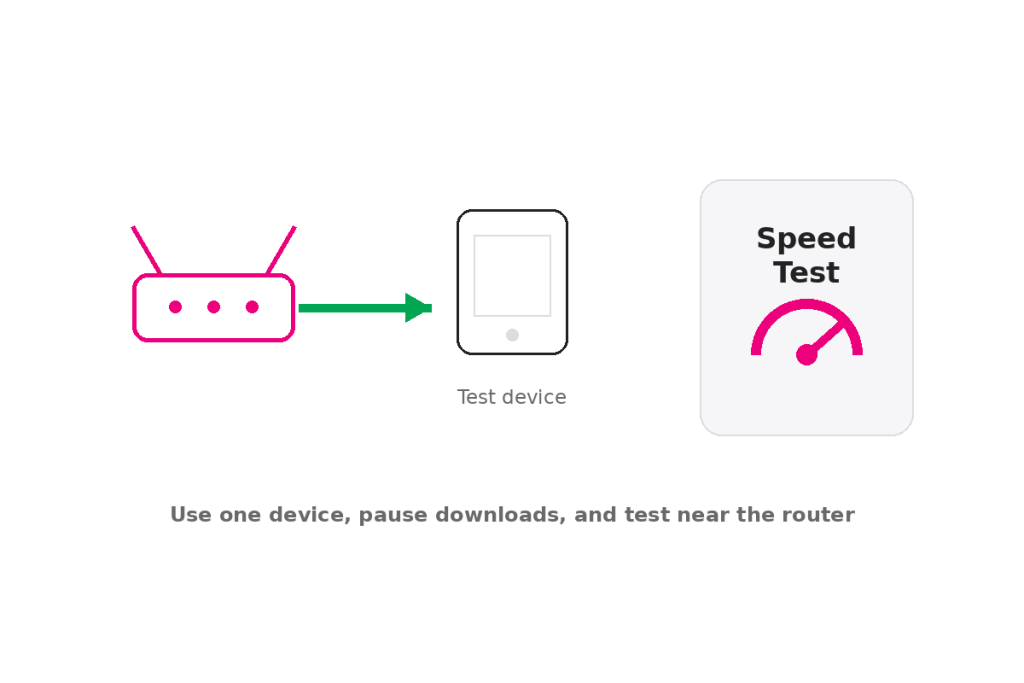
- Connect one device only, if possible.
- Stand near the router or use an Ethernet cable.
- Close apps and browser tabs that may use data.
- Run the test more than once.
- Compare WiFi results with Ethernet results, if available.
Common WiFi Problems and Fixes
WiFi Is Slow in One Room
This is usually a coverage issue. Move closer to the router, remove obstacles where possible, or consider mesh WiFi for better coverage.
Devices Keep Disconnecting
- Restart the router and affected device.
- Move the device closer to the router.
- Check whether the issue happens on one device or all devices.
- Forget the WiFi network on the device and reconnect.
Streaming Buffers or Gaming Lags
- Check whether other devices are downloading, streaming, or updating.
- Move closer to the router or use Ethernet for gaming and smart TVs.
- Restart the router if the connection has been running for a long time.
One Device Is Slow but Others Are Fine
The issue is likely with that device. Restart it, check for updates, clear background apps, and test again.
Reduce WiFi Interference
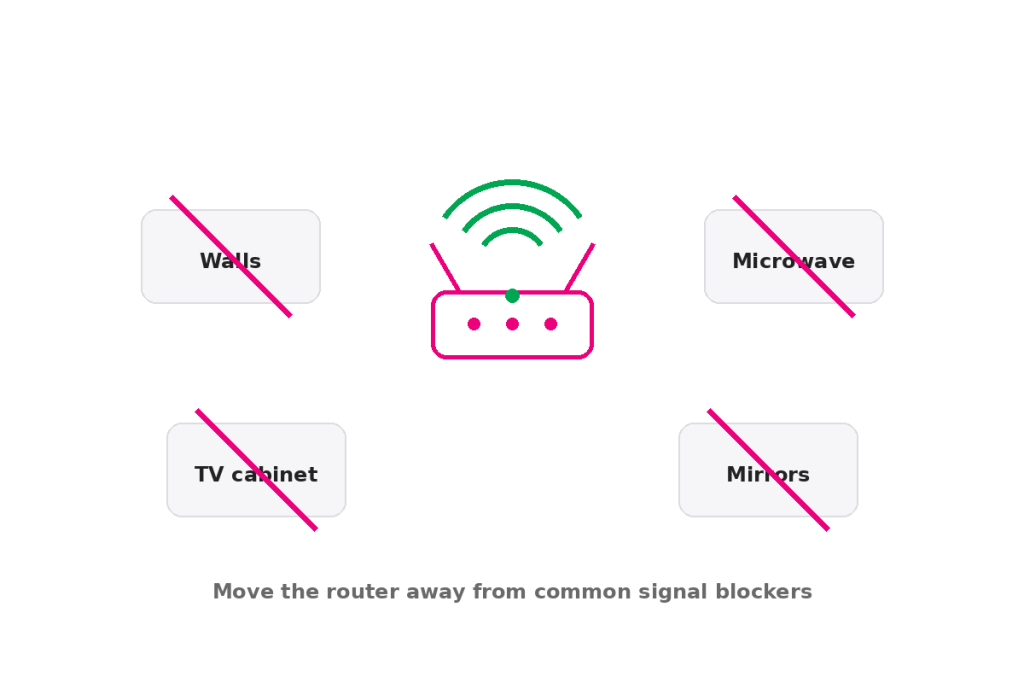
WiFi can be affected by walls, mirrors, appliances, cupboards, and other electronics. Small placement changes can make a big difference.
What Speeds Should You Expect?
| Activity | Recommended Speed |
|---|---|
| Browsing and email | 10 Mbps or more |
| HD streaming | 20 Mbps or more |
| 4K streaming | 50 Mbps or more |
| Gaming | Stable latency is more important than raw speed |
| Multiple users or larger homes | 100 Mbps or more is recommended |
In Summary
Slow internet is often caused by WiFi coverage, router placement, interference, or device performance. Start with the quick checks, test near the router, compare with Ethernet where possible, and improve router placement before assuming there is a fibre fault.