
Some Webafrica services require RICA before we can complete your order. The process is completed online using a secure link.
Here’s what you’ll need and how to complete the process.
Before you start
Once your order has been accepted, we’ll send a WhatsApp message to the mobile number linked to your order. This message contains your unique RICA link.
You’ll need to complete the RICA process within 7 days of receiving the link.
Before opening the link, have the following ready:
- Your South African ID document. If you have a Smart ID Card, you’ll need both the front and back.
- A proof of residential address dated within the last 3 months.
- A device with a working camera, as you’ll need to take a photo of yourself.
Important: Use the RICA link sent to you by Webafrica. The link is unique to your order.
Step 1: Open your RICA link
Open the link in the WhatsApp message we sent you.
You’ll be taken to the Webafrica RICA onboarding page. Follow the prompts to begin the verification process.
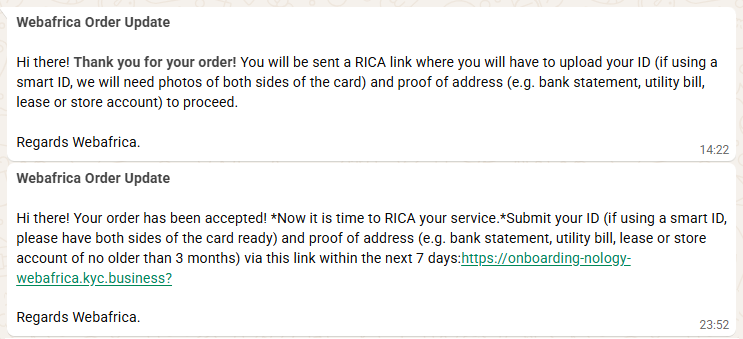
Step 2: Scan your ID
Select the type of ID document you’re using:
- Green ID Book
- New ID Card
Allow your browser to use your camera when prompted.
Position your ID clearly within the border shown on screen and take the photo.
If you’re using a Smart ID Card, you’ll be asked to capture both the front and back of the card.
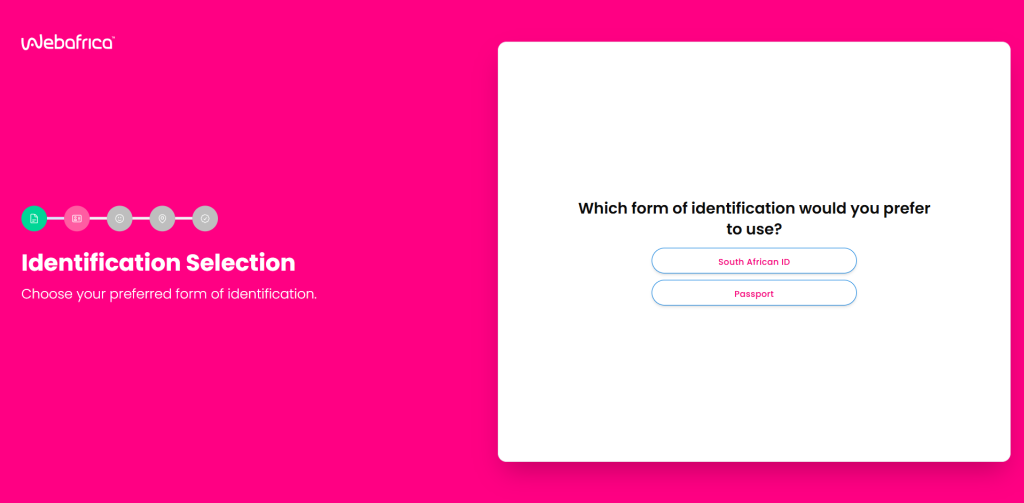
Tips for scanning your ID
Make sure:
- The entire document is visible.
- The details are clear and readable.
- There is enough light.
- There is no glare covering the information.
- Your fingers aren’t covering important information on the document.
Step 3: Take your profile photo
Next, you’ll need to take a photo of yourself using your device’s camera.
The system will guide you through the requirements. Make sure:
- Your face is within the border.
- You are facing the camera.
- You are close enough to the camera.
- Your face is clear and not blurry.
- You aren’t wearing anything that obscures your face.
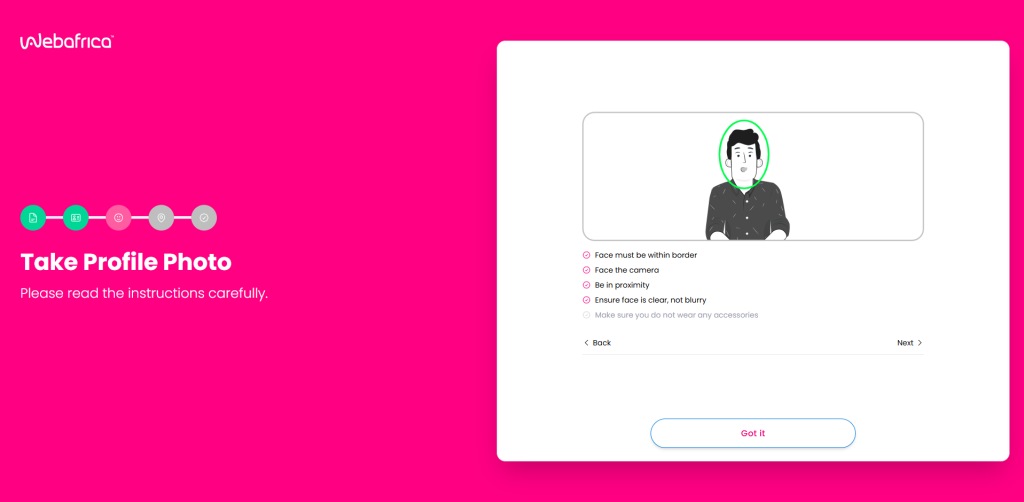
Once your photo has been taken, you’ll be able to review it.
Select Retake if you aren’t happy with the photo, or Submit to continue.
Step 4: Enter your residential address
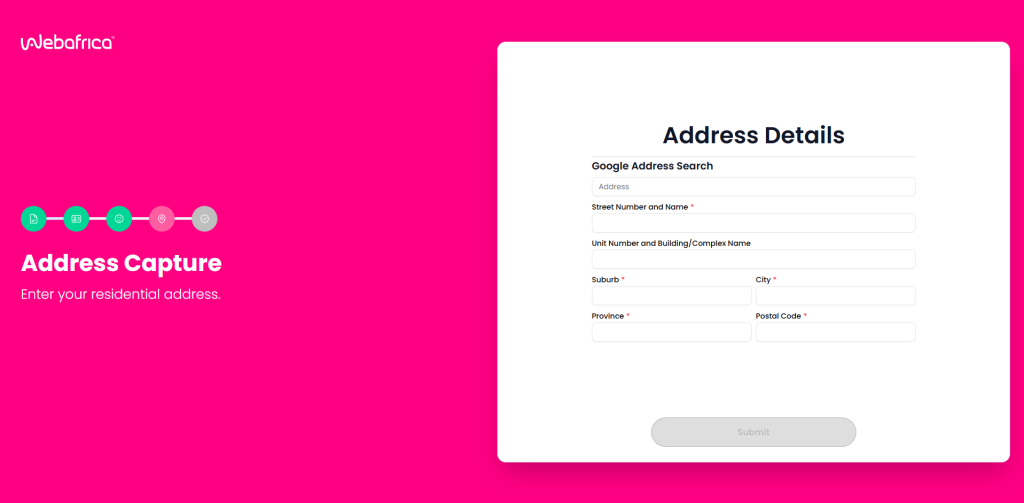
Enter the residential address that you are using for RICA.
Start typing your address under Google Address Search and select the correct address when it appears.
Check that the populated information is correct, including:
- Street number and name
- Unit number and building or complex name, where applicable
- Suburb
- City
- Province
- Postal code
Select Submit once everything is correct.
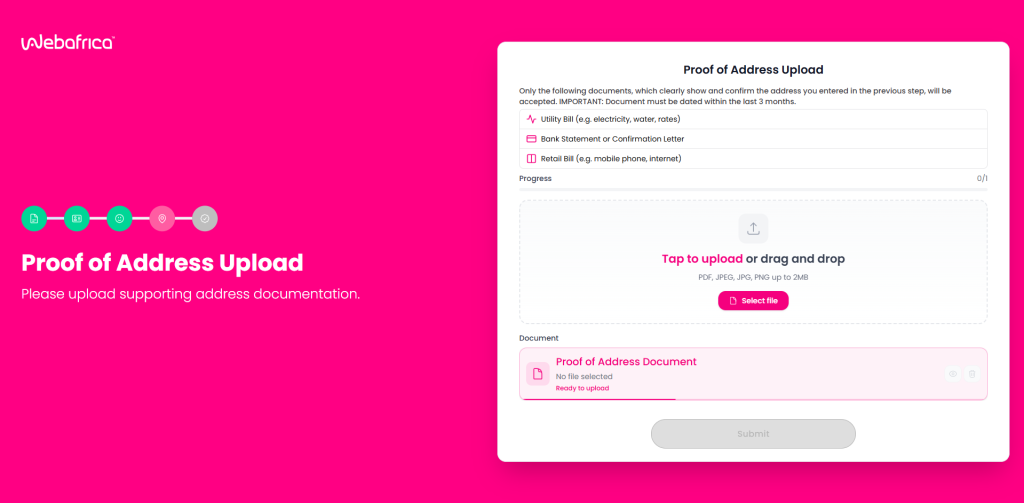
Step 5: Upload your proof of address
Your proof of address must clearly show and confirm the residential address you entered in the previous step.
It must be dated within the last 3 months.
Accepted documents include:
- Utility bill, such as an electricity, water or rates bill
- Bank statement or bank confirmation letter
- Retail bill, such as a mobile phone or internet account
Select Select file to find the document on your device, or drag and drop the file into the upload area if you’re using a computer.
Accepted file formats are PDF, JPEG, JPG and PNG, with a maximum file size of 2 MB.
Once uploaded, you’ll see confirmation that the document has been received. You can preview or remove it before continuing.
Select Submit when you’re ready.
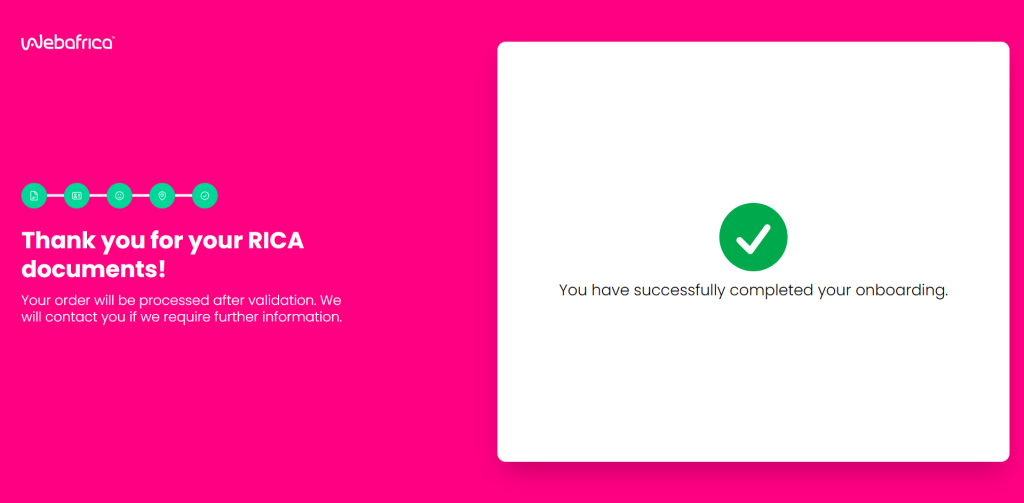
You’re done!
Once all the steps have been completed, you’ll see confirmation that your onboarding has been successfully completed.
Your documents will then be validated before your order can continue.
You don’t need to submit anything again unless we contact you. If we need more information or there is a problem with one of your documents, we’ll get in touch with you.
Having trouble completing RICA?
A few things are worth checking:
Camera won’t start: Make sure you’ve allowed the website permission to use your camera. If you previously blocked camera access, you’ll need to change the permission in your browser.
ID won’t scan: Try moving to a well-lit area and make sure the whole document is inside the guide on screen.
Proof of address won’t upload: Check that the document is an accepted file type, is no larger than 2 MB and is dated within the last 3 months.
RICA link isn’t working or has expired: Contact Webafrica Support so we can assist with your order.