
You can use the Antispam Cloud portal to view quarantined messages, manage spam settings, check filtering logs, and control your whitelist or blacklist. If this is your first time using the portal, you will need to retrieve a login link and create a password.
Follow the steps below.
1. Open the Antispam Cloud Login Page
Go to https://login.antispamcloud.com.
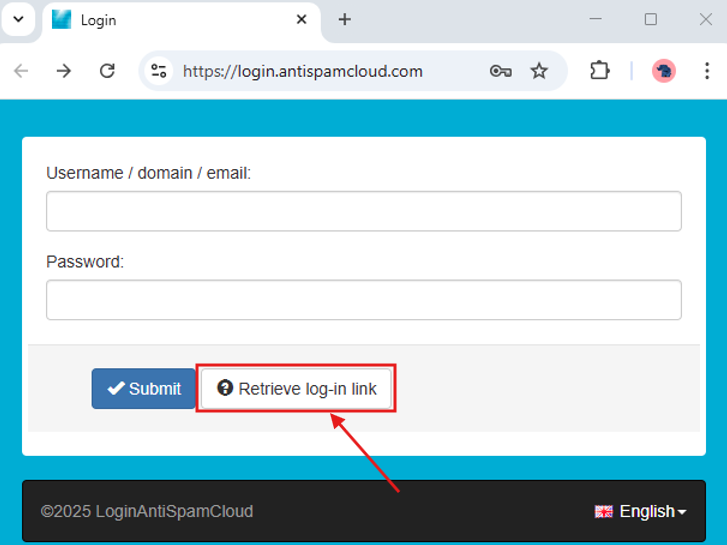
2. Retrieve Your Login Link
Click Retrieve log-in link.
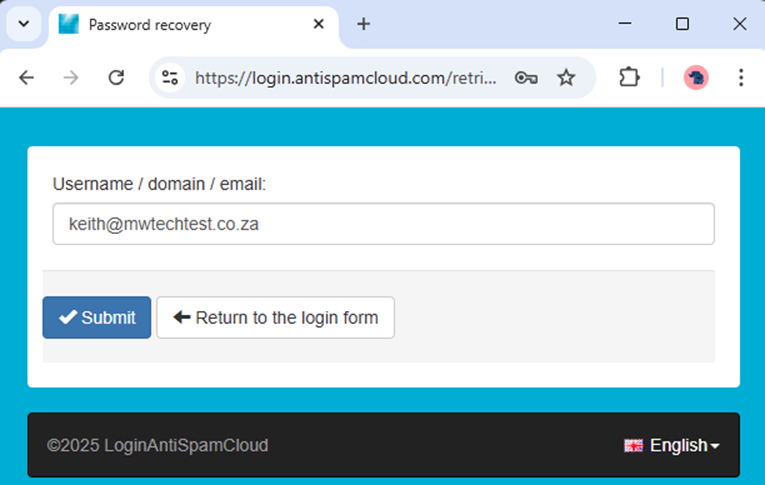
Enter your full email address and click Submit.
3. Check Your Inbox
You will receive an email from:
no-reply@antispamcloud.com
Subject: Temporary link to change your password
Open the mail and click Set password.

4. Create Your Password
You will see a page asking you to set your password.
Passwords must be at least 16 characters long.
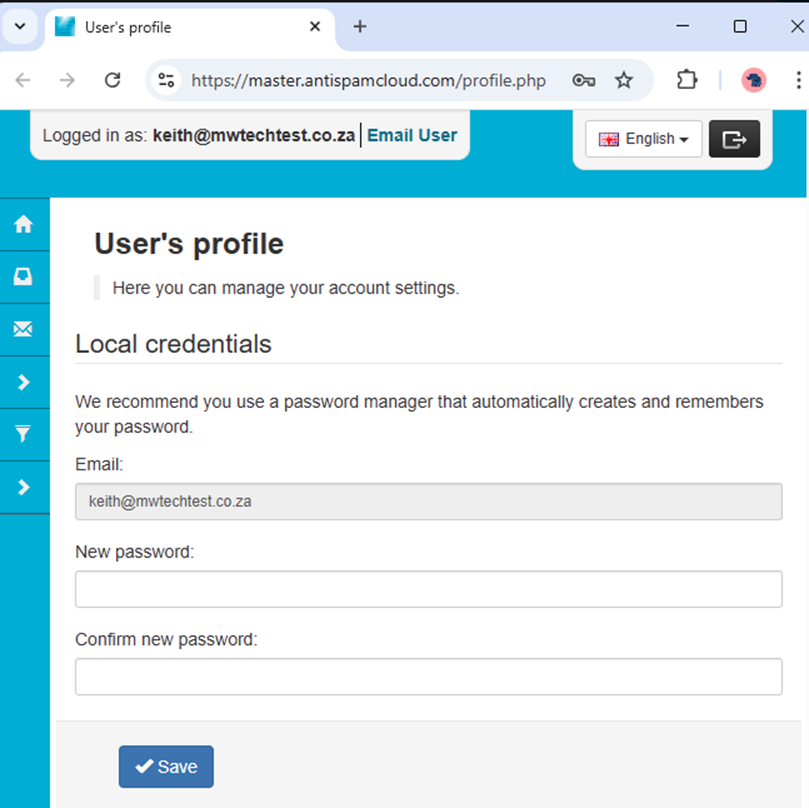
After saving your password, you will see a success message.

5. Log In to the Portal
Go to https://master.antispamcloud.com or https://login.antispamcloud.co.za
Enter your:
- Email address
- New password
Click Submit.
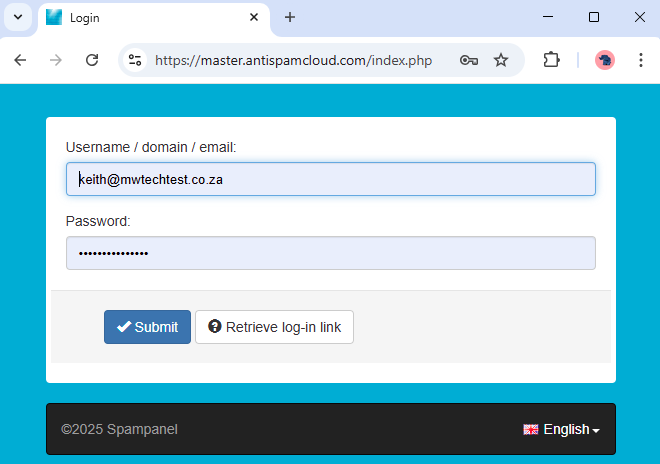
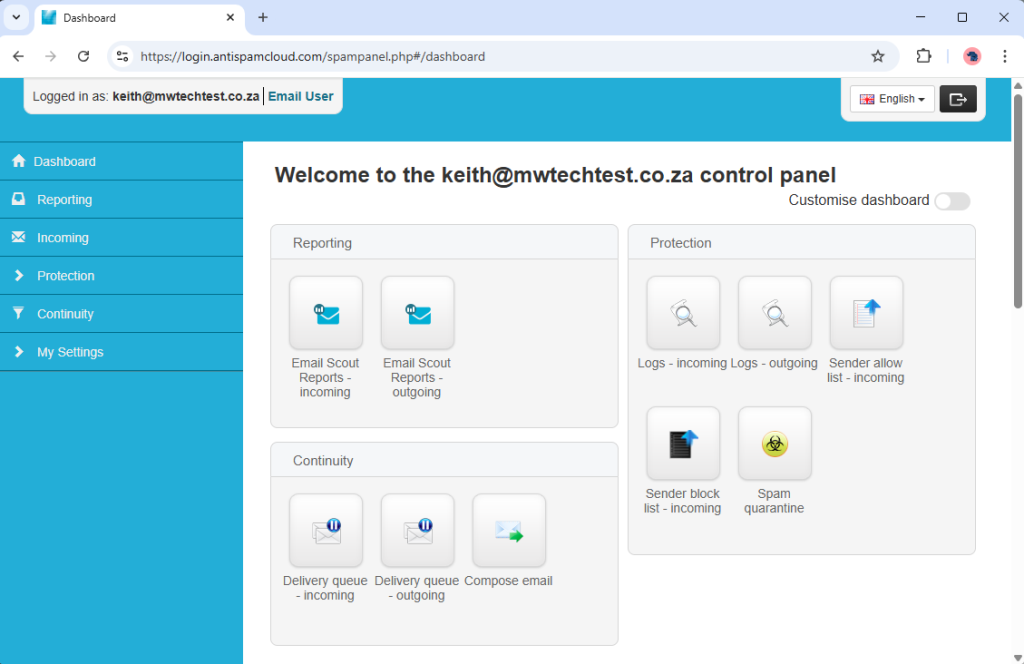
Once logged in, you will see the dashboard.
6. Mandatory Two Step Authentication (2FA)
Antispam Cloud may require you to enable 2FA immediately, even if you did not switch it on yourself.
You will see a screen showing:
- A QR code
- A setup key
- A field to enter the six-digit authentication code
Use an authenticator app such as:
- Google Authenticator
- Microsoft Authenticator
Scan the QR code or enter the key manually.
Enter the six-digit code displayed in your app and click Submit.
2FA is now active, and you will need the six-digit code for each login.
If you get a new phone and lose your codes, you can follow from Step 1 again to Retrieve log-in link

7. Your Account Dashboard
Once 2FA is complete, you will land on your dashboard.
8. Managing User Profile Settings
Go to User’s profile to manage your details.
You will find:
Local credentials
Update your password by entering your old password and a new one.
Language
Set the display language for your session.
Two Step Authentication
Toggle or update your 2FA settings.
Notification settings
Choose when the system should notify you of account activity such as new IP logins.
Click Save to apply changes.
9. Logging Out
Click the button in the top right of the page.

Click Yes to log out.

10. Logging Back In
Enter your email address and password and select Submit.
If 2FA is enabled, you will be asked for your six-digit code.
You can also choose to remember the device by ticking the box.
Then click Submit.

You are now ready to manage your spam settings
Inside Antispam Cloud you can:
- View quarantined emails
- Release or block messages
- Check logs
- Add senders to whitelists or blacklists
- Adjust spam filtering settings