
Having trouble with your fibre connection? Start with what you see.
If your fibre internet is not working, the quickest fix depends on the lights on your fibre box (ONT), router, or the behaviour you are experiencing.
Choose the section below that best matches your issue:
- Red LOS light on the fibre box (ONT)
- WiFi connected but internet not working
- Router powered on but websites do not load
- No lights on the fibre box or router
- Slow or unstable internet connection
Red LOS Light on the Fibre Box (ONT)
What this means
A red or flashing LOS light usually means the fibre signal to your home has been interrupted.
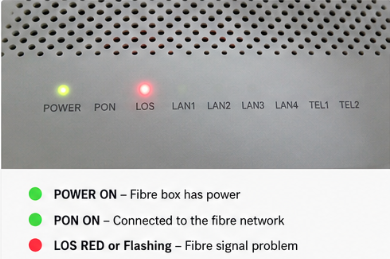
Example: A red LOS light usually means the fibre signal is interrupted.
Check the ONT lights
- Power ON = Fibre box has power
- PON ON = Connected to the fibre network
- LOS RED or Flashing = Fibre signal problem
What to Check
- Restart the fibre box (ONT) by unplugging the power for 30 seconds and plugging it back in.
- Wait 3 to 5 minutes for the connection to restore.
- Check that the fibre cable is securely connected.
- Make sure the fibre cable is not bent sharply, pinched, or damaged.
- If you live in an estate or complex, check whether neighbours are also affected.
Next Step
If the LOS light remains red after restarting, continue with the checks below to rule out local equipment or setup issues.
WiFi Connected but Internet Not Working
What this means
Your WiFi network is working, but the router cannot reach the internet.
You may still see full WiFi signal bars even though websites and apps do not load.
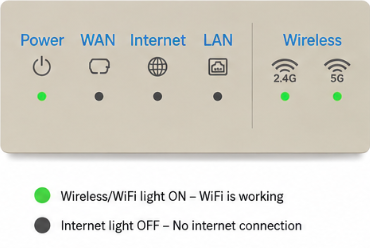
In this example, WiFi is working but the router is not connected to the internet.
Check the Router Lights
- Wireless/WiFi light ON = WiFi is working
- Internet light OFF = No internet connection
What to Check
- Restart your router and wait 2 to 3 minutes.
- Check the fibre box (ONT) lights for a red LOS light.
- Try another device to rule out a device issue.
- Move closer to the router to rule out weak WiFi signal.
- Turn WiFi off and back on again on your device.
Helpful Tip
WiFi and internet are not the same thing.
You can have working WiFi while the internet connection itself is offline.
Check the Router WAN Cable
What this means
Your fibre box (ONT) connects to the router using a network cable. If this cable is plugged into the wrong port, your router may power on and broadcast WiFi, but the internet will not work.
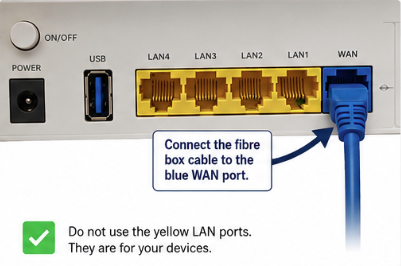
The cable from the fibre box should connect to the blue WAN port.
What to Check
- Make sure the cable from the fibre box is connected to the WAN port on the router.
- The WAN port is often blue and separate from the yellow LAN ports.
- Remove and reconnect the cable firmly.
- Ensure the cable clicks securely into place.
- Restart the router after reconnecting the cable.
Helpful Tip
The yellow ports are normally for devices such as PCs, TVs, or gaming consoles. The fibre connection should go into the WAN port.
Router Connected but Websites Do Not Load
What this means
Your fibre box and router appear normal, but the router may not be connecting correctly using your fibre login details.
A PPPoE test helps confirm whether the issue is caused by the router or the fibre connection itself.
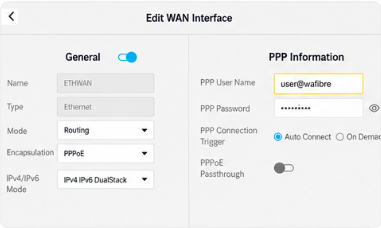
What to Check
- Confirm that the router is set to PPPoE connection mode.
- Check that the PPPoE username is entered correctly.
- Check that the PPPoE password is correct.
- Ensure Auto Connect is enabled if available.
- Save any changes and restart the router.
Helpful Tip
A PPPoE test removes the router setup from the equation and can quickly help identify whether the issue is related to settings or the fibre connection.
Need help with PPPoE setup? View our guide:
Related Article: How to Setup a PPPoE Broadband Connection
No Lights on the Fibre Box or Router
What this means
Your equipment may not be receiving power.
What to Check
- Make sure the plug socket is switched on.
- Check that the power cable is connected securely.
- If using a UPS or inverter, confirm that it is powered on and working.
- Try a different wall plug if possible.
- Check whether there has been a power trip or load shedding.
Helpful Tip
Some UPS devices power down automatically when battery levels are low.
Internet Slow or Keeps Disconnecting
What this means
Your fibre connection may be working, but WiFi signal, congestion, or device limitations could affect performance.
What to Check
- Move closer to the router.
- Test on another device.
- Disconnect devices that may be heavily downloading or streaming.
- Restart the router.
- Test using a network cable if possible to compare performance.
Helpful Tip
WiFi speeds may vary depending on distance, walls, interference, and the number of connected devices.
A wired connection usually provides the best performance.
Quick Self-Help Checklist
Before moving on to advanced troubleshooting, confirm the following:
✅ Restarted the fibre box (ONT) and router
✅ Checked for a red LOS light
✅ Confirmed the WAN cable is connected correctly
✅ Tested on another device
✅ Checked WiFi signal strength
✅ Restarted the router
✅ Verified PPPoE settings if required