
How to Set Up an IMAP Email Account in Outlook 2013/2016
Use this guide to set up your Webafrica email account in Microsoft Outlook 2013 or Outlook 2016 using IMAP.
Before you start: Make sure you have your full Webafrica email address and email password ready.
Email Settings
| Account Type | IMAP |
| Incoming Mail Server | mail.webafrica.org.za |
| Outgoing Mail Server | mail.webafrica.org.za |
| Incoming Port | 993 |
| Incoming Encryption | SSL/TLS |
| Outgoing Port | 587 |
| Outgoing Encryption | STARTTLS |
| Username | Your full email address |
| Password | Your email password |
Step-by-Step Instructions
-
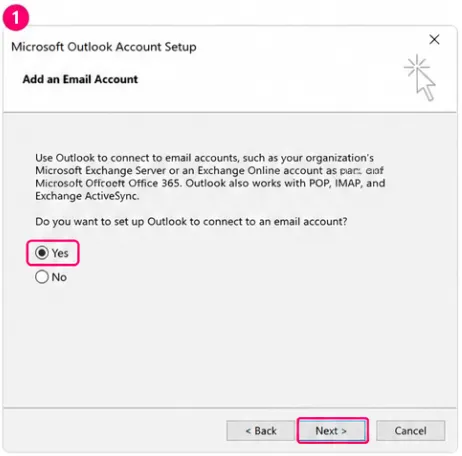
Start the Outlook Email Setup
Open Microsoft Outlook.
If this is the first time you are opening Outlook, the Microsoft Outlook Account Setup screen will appear.
- Select Yes when asked if you want to set up Outlook to connect to an email account.
- Select Next.
-
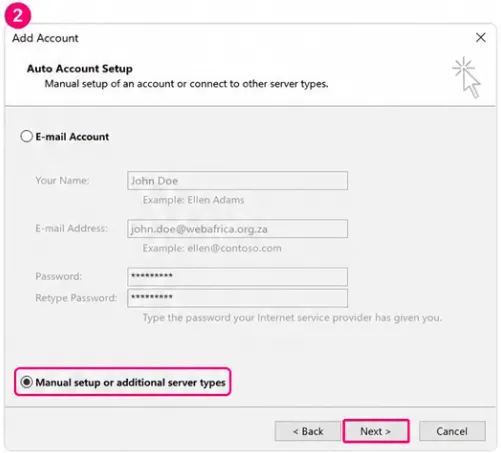
Choose Manual Setup
- On the Add Account screen, select Manual setup or additional server types.
- Select Next.
-
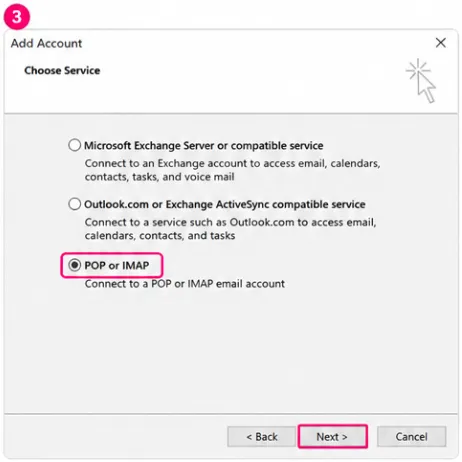
Select POP or IMAP
- On the Choose Service screen, select POP or IMAP.
- Select Next.
-
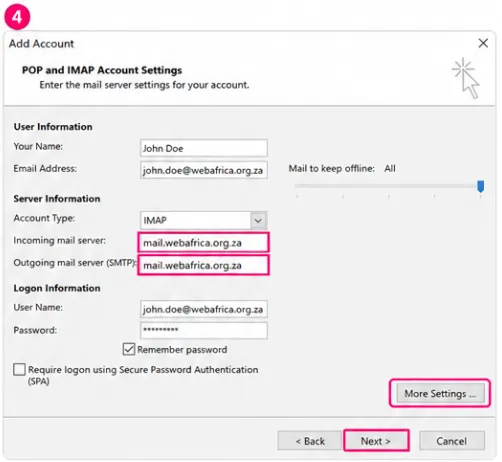
Enter Your Account Details
On the POP and IMAP Account Settings screen, enter your email account information.
Your Name Enter your name as you want it to appear when sending emails. Email Address Enter your full Webafrica email address. Account Type Select IMAP. Incoming Mail Server Enter mail.webafrica.org.za.Outgoing Mail Server (SMTP) Enter mail.webafrica.org.za.User Name Enter your full Webafrica email address. Password Enter your email password. Tick Remember password if you want Outlook to save your password.
Select More Settings.
-
Enable Outgoing Server Authentication
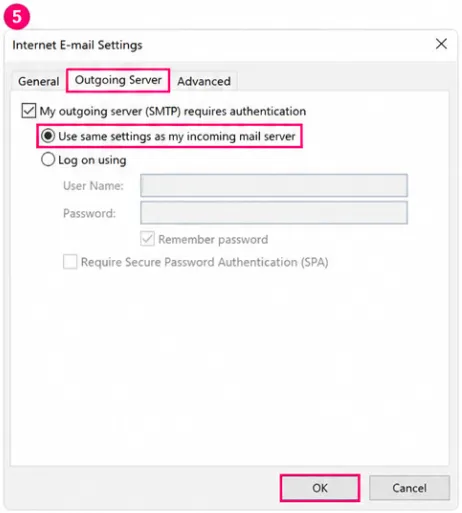
- Select the Outgoing Server tab.
- Tick My outgoing server (SMTP) requires authentication.
- Select Use same settings as my incoming mail server.
-
Set the Advanced Server Settings
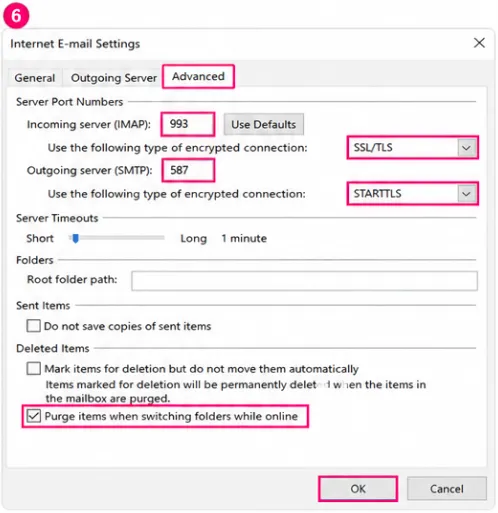
- Select the Advanced tab.
- Set Incoming server (IMAP) to 993.
- Set the incoming encrypted connection to SSL/TLS.
- Set Outgoing server (SMTP) to 587.
- Set the outgoing encrypted connection to STARTTLS.
- Select OK.
-
Finish the Setup
- Select Next.
- Outlook will test the account settings.
- Once the test is successful, select Finish.
Your Webafrica email account is now set up in Outlook.
Troubleshooting Tips
- Make sure your username is your full Webafrica email address.
- Check that your email password is correct.
- Confirm that both mail servers are set to
mail.webafrica.org.za. - Confirm that IMAP uses port 993 with SSL/TLS.
- Confirm that SMTP uses port 587 with STARTTLS.
- Make sure outgoing server authentication is enabled.
- Check that your internet connection is working.
Was this article helpful?