
Performing a Trace Route and Ping Test
If you are experiencing slow browsing, buffering, gaming lag, dropped connections, or websites taking too long to load, a Ping or Trace Route (Traceroute) test can help identify where the issue may be happening.
These tests help determine:
- Whether your internet connection is responding normally
- If there is unusually high latency (delay)
- Where delays may be happening between your device and a website or service
- Whether the issue is inside your home network or further along the internet route
Before You Start
For the most accurate results:
✅ Connect your device directly to the router using a network cable (Ethernet) if possible
✅ Pause downloads, streaming, gaming, or cloud backups during the test
✅ Run the test while the issue is happening
✅ Test from the same device experiencing the problem
Testing over WiFi may give inconsistent results due to signal interference or distance from the router.
What Is a Ping Test?
A Ping test measures how quickly data travels between your device and a website or server and back again.
Think of it like checking how quickly someone replies to a message.
A lower result is usually better.
What Ping Measures
- Low Ping (Good): Fast response times, better for gaming, browsing, and video calls
- High Ping: Slower response times, which can cause lag, buffering, or delays
- Packet Loss: Missing responses that may indicate a connection issue
Example
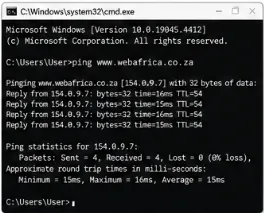
ping www.webafrica.co.za
What the Results Mean
- Time (ms) = Response speed in milliseconds
- TTL = How many network hops the data passed through
- Request Timed Out = The destination did not respond
A few occasional spikes are normal. Constantly high ping or timeouts may indicate a network or connection issue.
What Is a Trace Route (Traceroute)?
A Trace Route shows the journey your internet traffic takes between your device and a website or service.
It checks every stop (called a hop) along the route and measures how long each one takes to respond.
This can help identify whether delays are:
- Inside your home network
- On your provider’s network
- On another network between you and the destination
- At the website or server itself
Example
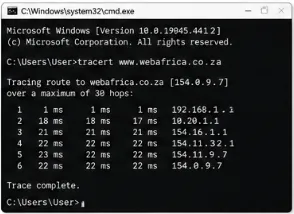
tracert www.webafrica.co.za
What the Results Mean
- Hop = A stop between networks
- ms = Response time for each hop
- * = A timeout or device not responding to traceroute requests
Seeing an occasional
*is not always a problem. Some network devices intentionally ignore traceroute requests.
How to Run a Ping Test on Windows
-
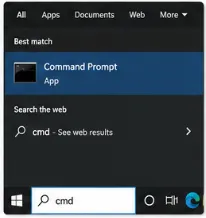
Press the Windows key and type:
cmdOpen Command Prompt.
-
Type:
ping www.webafrica.co.zaThen press Enter.
-
Wait for the results to complete.
Look for:
- Average response time
- Timeouts
- Packet loss
How to Run a Trace Route on Windows
-
Open Command Prompt.
Press the Windows key, type:
cmdand press Enter.
-
Type:
tracert www.webafrica.co.zaThen press Enter.
-
Wait for the test to complete.
This can take a minute or two.
Look for:
- Large jumps in response time
- Repeated timeouts
- Sudden delays on specific hops
How to Run a Ping Test on Mac
-
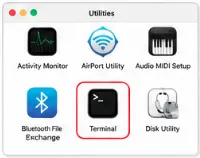
Open:
Applications > Utilities > Terminal
-
Type:
ping www.webafrica.co.zaPress Enter.
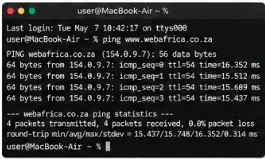
-
Allow the test to run for around 20 to 30 seconds.
Press:
Control + Cto stop the test.

How to Run a Trace Route on Mac
-
Open:
Applications > Utilities > Terminal
-
Type:
traceroute www.webafrica.co.zaPress Enter.
-
Wait for the results to complete.
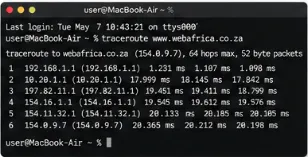
What to Do Next
If your internet issue continues:
- Restart your router
- Run a speed test using a wired connection
- Check for known outages on the Network Status page
- Repeat the Ping or Trace Route test while the issue is happening
Was this article helpful?