
How to Pair Your ZTE H3601P Mesh Device
Get Better Wifi Coverage in Minutes
Struggling with weak Wifi in certain rooms? Your ZTE H3601P mesh devices are designed to fix that by working together to create one strong, seamless network across your home.
Before You Start
Make sure:
- Your main router is powered on and working
- Your mesh device is plugged into power
- You are close to the main router for the initial setup
LED Light Guide
- Red - Not paired
- Flashing Blue - Paired, but the signal is weak
- Solid Blue - Paired with a good signal
If the light flashes blue, move the unit closer to the router.
-
Power On the Mesh Device
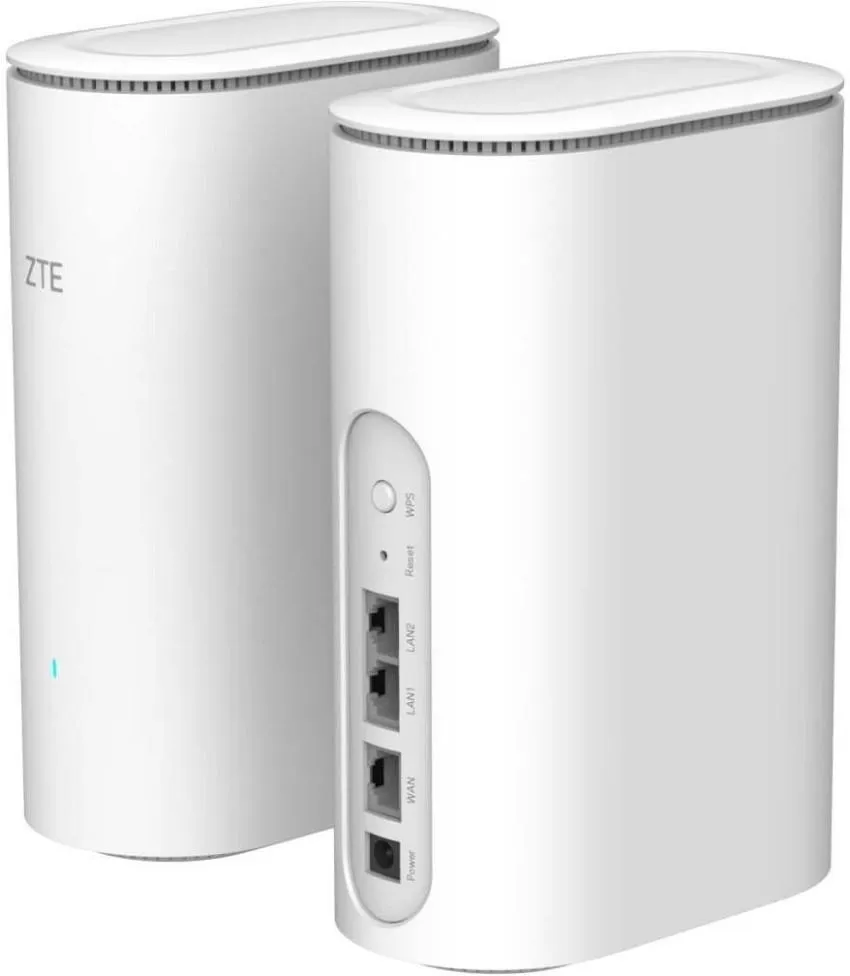
Plug in your ZTE H3601P mesh unit and switch it on.
Wait about 2 to 3 minutes for it to boot up.
Look at the LED light:
- Flashing or blinking red light means it’s ready to pair
-
Press the Pairing Buttons
On your main router:
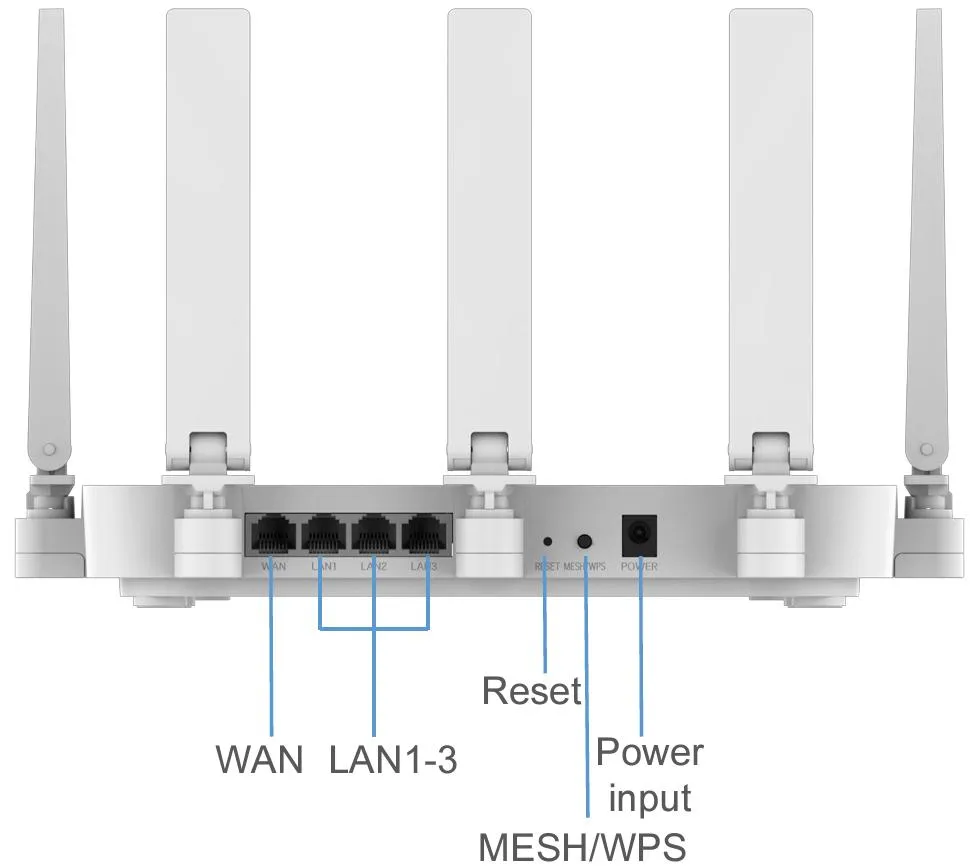
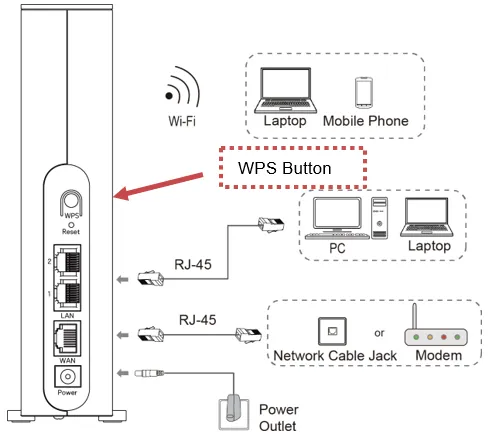
- Press the Mesh/WPS button
Then on the mesh device:
- Press the Mesh/WPS button
Do this within 2 minutes of each other.
-
Wait for the Devices to Connect
Allow a few minutes for pairing to complete.
- Solid blue = Good signal
- Flashing blue = Weak signal
Move the unit closer if needed.
-
Move Your Mesh Device to Its Final Spot
Now that pairing is done:
- Unplug the mesh device
- Move it to the area where you need better Wifi
- Plug it back in
Place it halfway between your router and the weak signal area for best results.
Adding Multiple Mesh Units
You can add more mesh units to extend your Wifi coverage across your home.
To get the best results:
- Pair each mesh unit one at a time
- Keep each unit within range of the router or another mesh unit
- Avoid thick walls, cupboards, and electrical interference
Common Mistakes to Avoid
- Pairing too far from the router
- Not pressing both buttons within 2 minutes
- Moving the device before pairing is complete
Final Check
Connect your phone or laptop and walk around your home.
You should now have:
- Stronger signal
- Better coverage
- No need to manually switch networks
If WPS Fails (Wired Method)
-
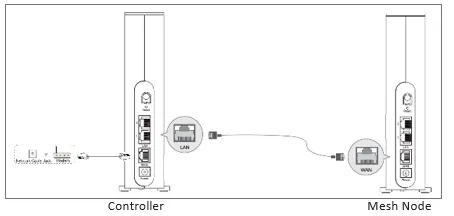
Connect via Ethernet
Connect the mesh unit to a LAN port on the router using an Ethernet cable. Ensure both devices are powered on.
-
Wait for Automatic Pairing
The mesh unit will configure itself. The light will turn blue once successful.
-
Disconnect Ethernet
Unplug the cable once the light is blue.
-
Move to Final Position
Place the unit where coverage is needed.
- Solid blue = Good connection
- Flashing blue = Weak signal
- Red = Connection lost
If red, move it closer or repeat the pairing process.
Pairing to a Non-ZTE Router
The mesh unit can also work with other routers.
Method 1: Using WPS
- Plug in the mesh unit. The light will turn red.
- Press the WPS button on your router for 2 to 3 seconds.
- Within two minutes, press WPS on the mesh unit.
- Wait for pairing.
Solid blue means a good signal. Flashing blue means move it closer.
Method 2: Set Up as an Access Point
If WPS is unavailable:
- Connect the mesh unit to a LAN port on your router using an Ethernet cable.
- Power on both devices.
- Wait for the light to turn blue.
The mesh may broadcast its own WiFi network, often named something like ZTE_XXXX.
This setup may create a separate WiFi network rather than extending your existing one.
Move the unit to a central location. If the light turns red, it needs to be moved closer.
Tips for Best Performance
- Place mesh units halfway between your router and weak signal areas
- Keep them out in the open, not inside cupboards
- Avoid placing them near microwaves or large metal objects
- Pair one unit at a time when adding multiple devices
- Always wait for the light to stabilise before moving the unit
Good placement makes more of a difference than adding extra devices.
Was this article helpful?