
How to Check for Network Outages in the Webafrica Mobile App
If you’re having connection issues, it’s a good idea to first check if there’s a known outage in your area. The Webafrica app makes this quick and easy.
-
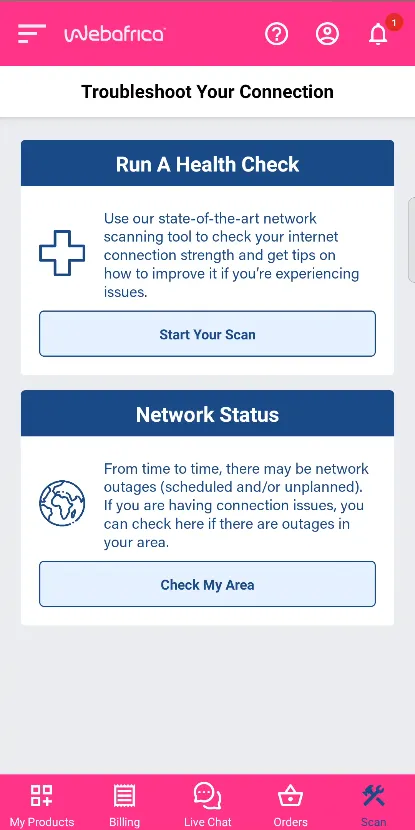
Open the Network Status Tool
- Tap the Scan icon at the bottom of the app.
- Select “Check My Area” under the Network Status section.
-
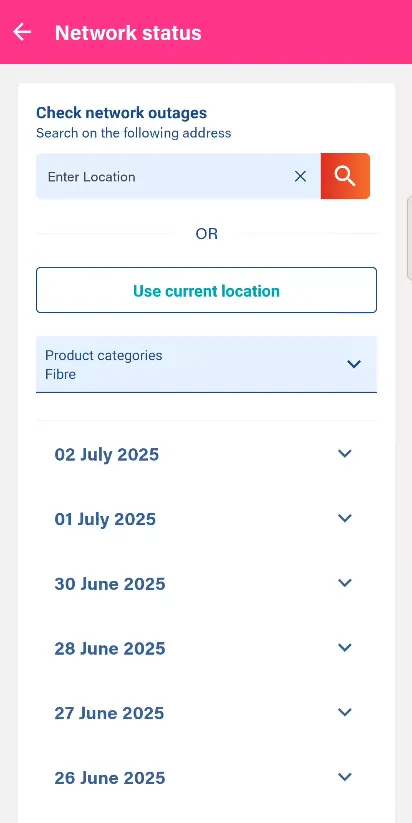
Search by Address or Use Your Location
Option A: Use Your Current Location
- Tap “Use current location”.
- The app will check if there are any current outages based on your location.
Option B: Search by Address
- Enter your street address in the search bar.
- Select the correct address from the dropdown.
- Tap the orange search icon to load results.
-
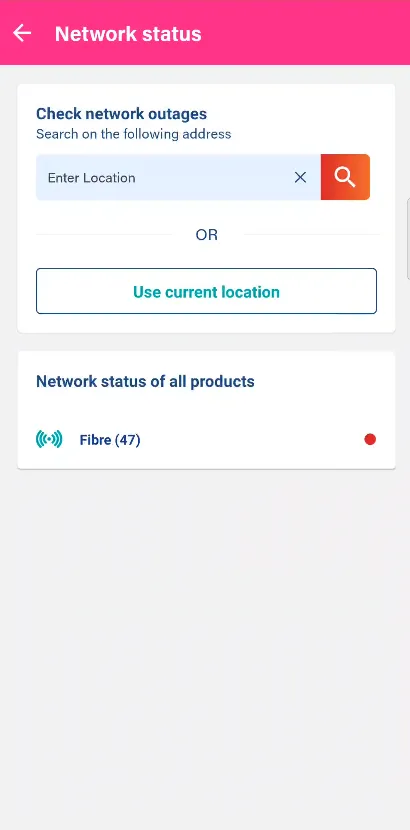
View Network Status
- The app will display the network status for your product (e.g. Fibre).
- A red dot means there is at least one active outage.
- Tap on the product to view more details.
-
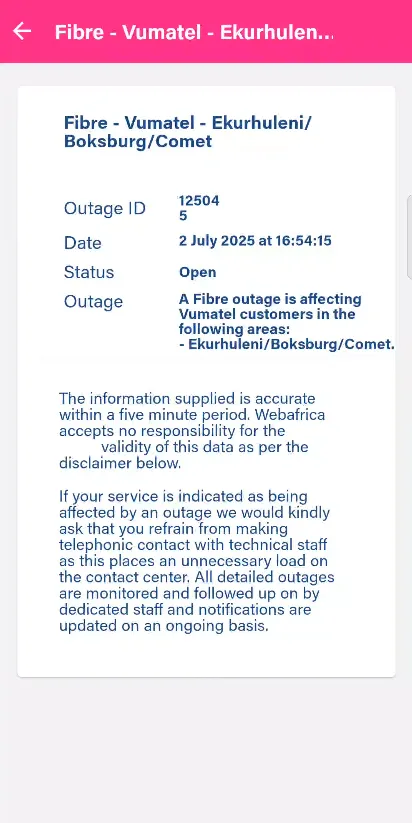
Check Outage Details
When you open an outage, you’ll see:
- Outage ID
- Date and Time
- Status (e.g. Open)
- Affected areas (e.g. Vumatel - Ekurhuleni/Boksburg/Comet)
- A reminder not to call during active outages, as updates are continuously posted in the app.
Was this article helpful?