
Your Vuma Reach ONT has indicator lights that show the status of its power, Fibre connection, WiFi and connected devices. Here’s what each light means and what to check when something doesn’t look right.
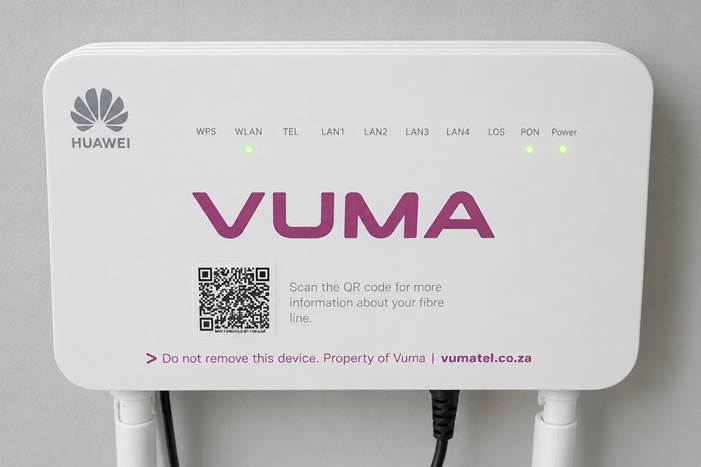
Vuma Reach ONT showing the indicator lights
What each light means
Power
The ONT is receiving power when this light is on. If it is off, the ONT has no power.
PON
This light shows that your ONT is connected and registered on the Fibre network. It should normally remain on. If it is off or flashing, there may be a Fibre line or network issue.
LOS (Loss of Signal)
This light should normally be off. If it is on or flashing, your ONT is not receiving a Fibre signal.
LAN1 to LAN4
These lights come on when a device is connected to the matching LAN port using an Ethernet cable. It is normal for them to be off when you only use WiFi.
WLAN
This light shows that your WiFi is switched on and broadcasting. If it is off, your devices will not be able to find your WiFi network.
TEL
This light is used for voice services, not provided by Webafrica or Vumatel
WPS
This light only comes on briefly while WPS pairing is in progress. It should normally be off.
What normal looks like
During normal use, the following lights should usually be on:
- Power
- PON
- WLAN
The LAN lights will only be on when devices are connected using Ethernet cables.
The WPS light will normally remain off unless you are pairing a device.
If something looks wrong
Power light is off
Check that:
- The power cable is firmly connected to the ONT.
- The power adapter is plugged into the wall socket.
- The wall socket is switched on and working.
PON light is off or flashing and the LOS light is on
This usually indicates a problem with the Fibre line or network rather than your WiFi.
Check the Webafrica Network Status page for a known outage before contacting Support.
Power and PON lights are on, but you cannot connect
Your Fibre line may be working, but there could be another connection or WiFi issue.
See Vuma Reach: No Internet Connection for further troubleshooting steps.
WLAN light is off
Your devices will not be able to find your WiFi network.
Restart the ONT:
- Unplug it from the power.
- Wait about 30 seconds.
- Plug it back in.
- Allow a few minutes for the connection and WiFi lights to come back on.