
The ZTE K10 is a mobile broadband router that uses a nano-SIM card to get you online. Follow this guide to get everything set up quickly and smoothly.
1. What You Need
Before you start, make sure you have:
- A nano-SIM card
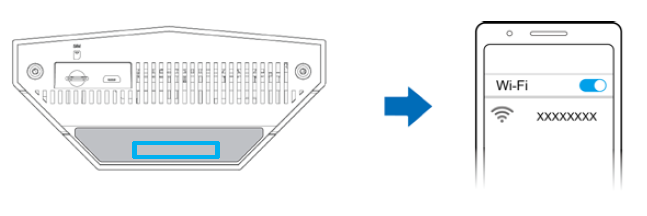
- Your WiFi name (SSID) and password (printed underneath the router)
- Your router’s login IP and admin password (printed underneath the router)
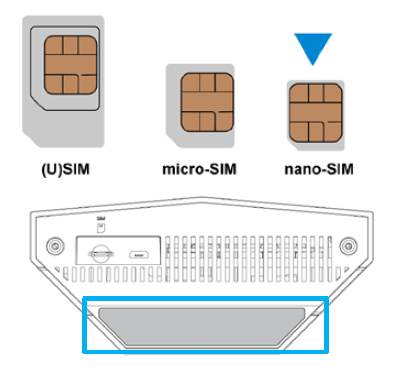
2. Insert Your SIM Card
- Turn the router over.
- Insert your nano-SIM card into the slot.
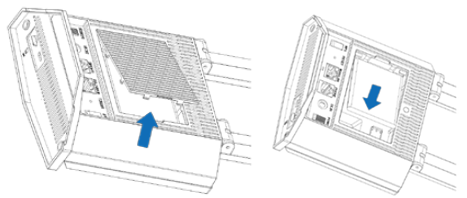
3. Insert the Battery
- Remove the back cover of the router.
- Insert the battery into the slot.
- Close the cover until it clicks.
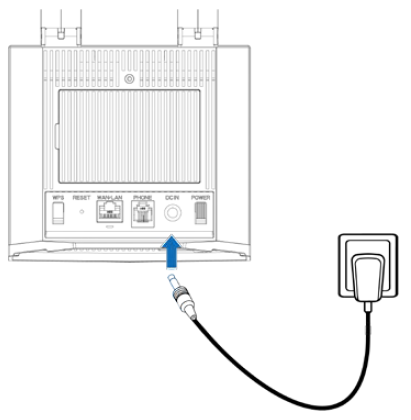
4. Power On the Router
- Plug in the power adaptor.
- Press and hold the Power button for about 3 seconds.
- Give the router a moment to start up and connect to the Internet automatically.
5. Connect Your Devices
Connect Over WiFi
- Look for your WiFi name (SSID) printed under the router.
- Enter the WiFi password exactly as shown.
- You should be online in a few seconds.
Connect With a Network Cable
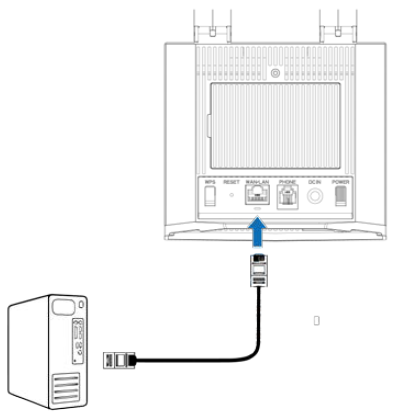
You can also use a LAN cable for a more stable connection.
- Plug the cable into any LAN port on the router.
- Connect the other end to your computer or laptop.
6. Change WiFi Settings
If you want to change your WiFi name or password:
- Connect to the router.
- Open your browser.
- Enter the default IP address from the bottom label.
- Log in with the admin password.
- Make your changes and save.
7. Using Router for Fibre
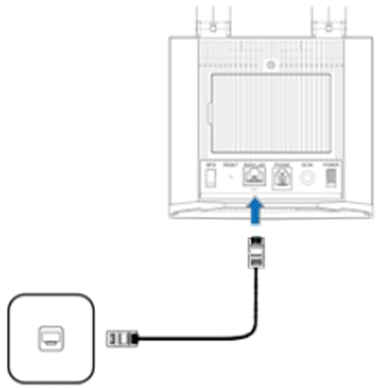
This device supports Fibre and can be used with a Fibre ONT:
- Plug a network cable from the ONT into the WAN/LAN port.
- Log in to the router settings.
- Switch the device to Cable Broadband Mode.
NOTE: Please disconnect from the Internet first, and then you can change the mode.
- The router will restart.
- Log in to the router settings again and enter your fibre setup details.
8. Router Lights and Interfaces
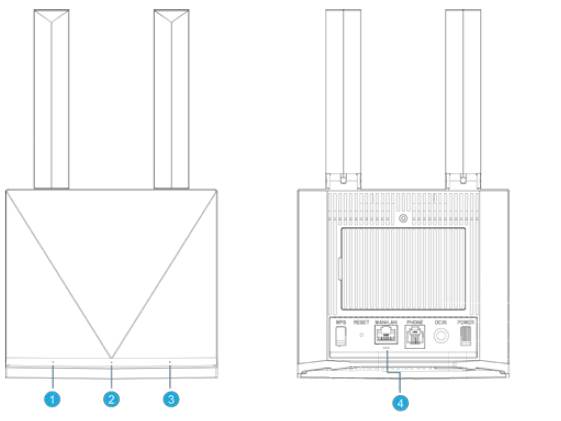
Power Light
- White: Router is on and battery is full
- White blinking: Charging
- Green: Medium battery, not charging
- Red: Low battery
- Red blinking: Very low battery
- Off: Router off or no battery installed
WiFi Light
- White: WiFi is active
- White blinking: WPS is connecting
- Off: WiFi is off
Signal (SIG) Light
- Red: No SIM or no network
- Green: Connected to 2G/3G
- Green blinking: 2G/3G detected but not connected
- White: Connected to LTE
- White blinking: LTE detected but still connecting
- Off: Power saving mode
LAN Light
- Green: Cable connected
- Blinking: Data is being transferred
- Off: No cable connected
9. Troubleshooting
No Internet?
- Restart the router.
- Make sure the SIM card is in correctly.
- Check the signal light.
- Move the router closer to a window for better signal.
Slow Speeds?
The speed depends on mobile signal.
Try placing the router higher or closer to a window.
Can’t Access the Settings Page?
- Use the correct IP address from the bottom label.
- Turn off any VPN or proxy.
- Make sure your device is only connected to one network.
WiFi Not Connecting?
- Ensure the WiFi light is on.
- Re-enter the WiFi password carefully.
- Make sure your device is set to obtain an IP automatically.
Forgot Your Password?
Hold the Reset button for 3 seconds to restore factory settings.