
Port Forwarding 101
Port forwarding lets devices outside your network connect to a specific device inside your network.
For example:
- Hosting a game server
- Accessing security cameras remotely
- Connecting to a PC or server at home
Without port forwarding, incoming connections are blocked by default.
How Port Forwarding Works
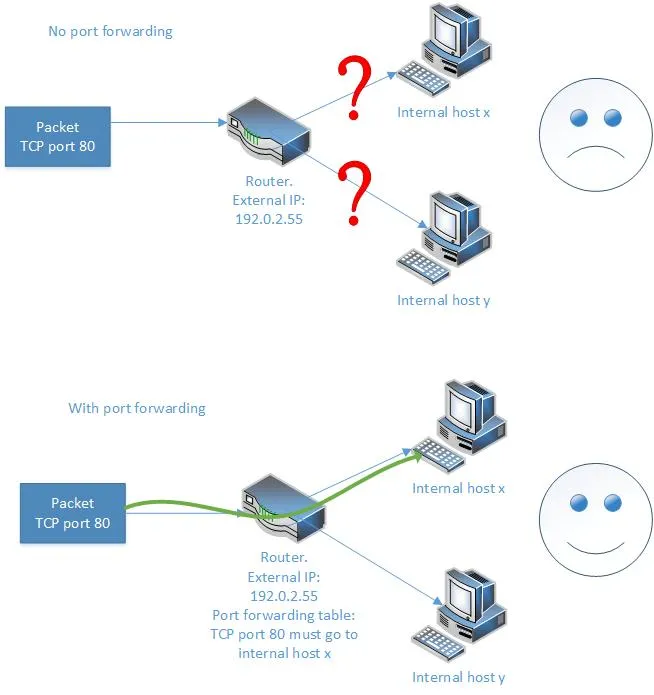
Your router acts as a gatekeeper.
- Devices inside your network have private IP addresses
- Your router has a public IP address
- Port forwarding tells the router which device should receive incoming traffic
Example:
Traffic coming to port 25565 gets sent to your gaming PC.
Before You Start
Make sure you have:
- The local IP address of the device you want to connect to
- The port number required by your app or game
- Access to your router settings
-
Assign a Static IP Address
Your device needs a fixed IP address on your network.
You can do this by:
- Setting a static IP on the device
- Or reserving an IP in your router settings
-
Log in to Your Router
Open your browser and go to your router’s IP address, usually:
- 192.168.0.1
- 192.168.1.1
Log in using your router username and password.
-
Create a Port Forwarding Rule
Look for sections like:
- Port Forwarding
- NAT
- Virtual Server
Add a new rule with:
- Port number (e.g. 25565)
- Protocol (TCP, UDP, or both)
- Local IP address (your device)
Save the settings.
-
Test the Port
Check if your port is open using an online port checker.
Make sure:
- Your app or service is running
- Your firewall allows the connection
Common Issues
Port Forwarding Not Working?
Check the following:
- You are not on CGNAT
If your WAN IP is private (10.x.x.x or 100.64.x.x range), port forwarding will not work - Firewall blocking traffic
Your device firewall may block incoming connections - Incorrect IP address
Make sure the rule points to the correct device - Wrong port or protocol
Double-check the required settings for your app or game
Alternatives to Port Forwarding
If port forwarding is not working or not possible:
- Use apps that support cloud or relay connections
- Use remote access tools that work without open ports
- Use VPN-based solutions for secure access
Key Takeaway
Port forwarding gives external access to devices inside your network.
It works well when:
- You have a public IP
- Your router and firewall are correctly configured
If not, modern alternatives can often achieve the same result without needing open ports.
Was this article helpful?