
How to Find Your Fibre Username and Password
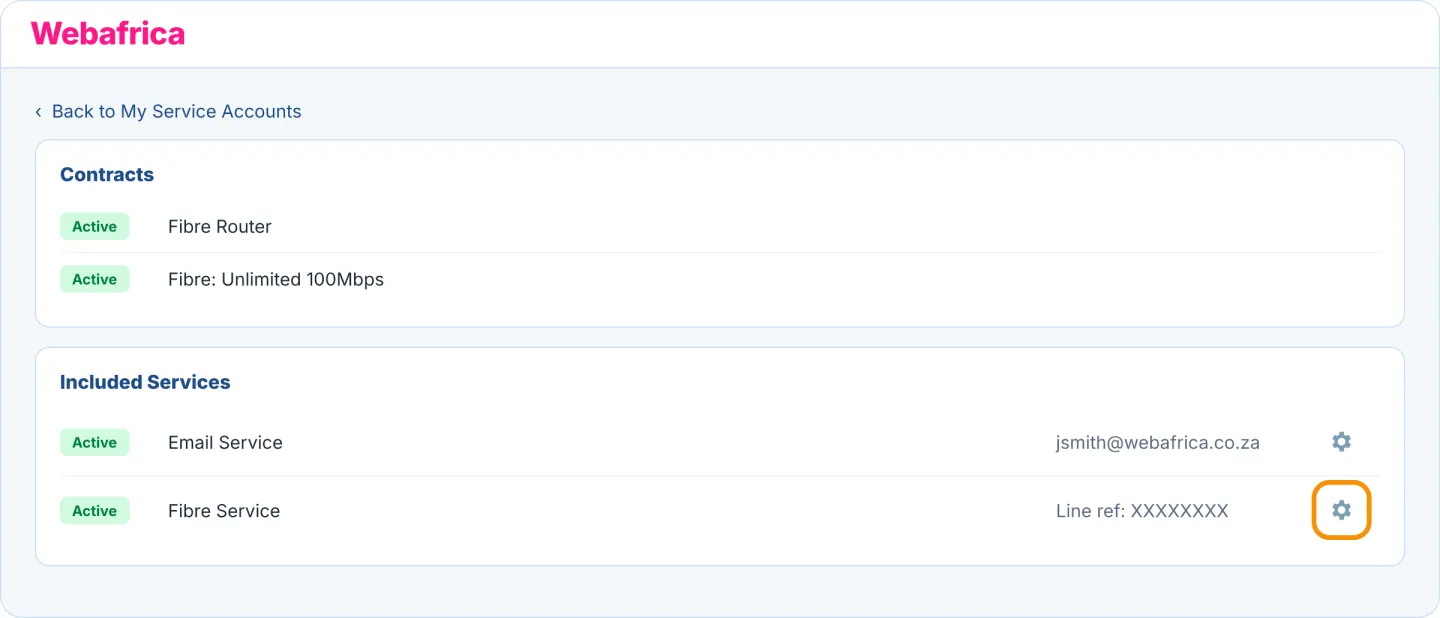
Your fibre username and router (PPPoE) password are in Customer Zone. Go to My Services > All Services, click the view icon next to your Fibre Service, then click the settings icon next to Fibre Service under Included Services. Open Access Details to see your full username, including the part after the @, and click the eye icon to show your password. Your fibre username may be different from your email address.
Your fibre username and password are what your router uses to connect to the internet. You'll need them when you set up a new router, reconnect after resetting your router, or switch back to your standard username after cancelling a Static IP.
Where do I find my fibre username and password?
- Log in to Customer Zone and go to My Services > All Services.
- Click the view icon next to your Fibre Service.
- Under Included Services, click the settings icon next to Fibre Service.
- In the Fibre Service Settings pop-up, click Access Details.
- Your fibre username is shown next to Username. To see your password, click the eye icon in the Password box.
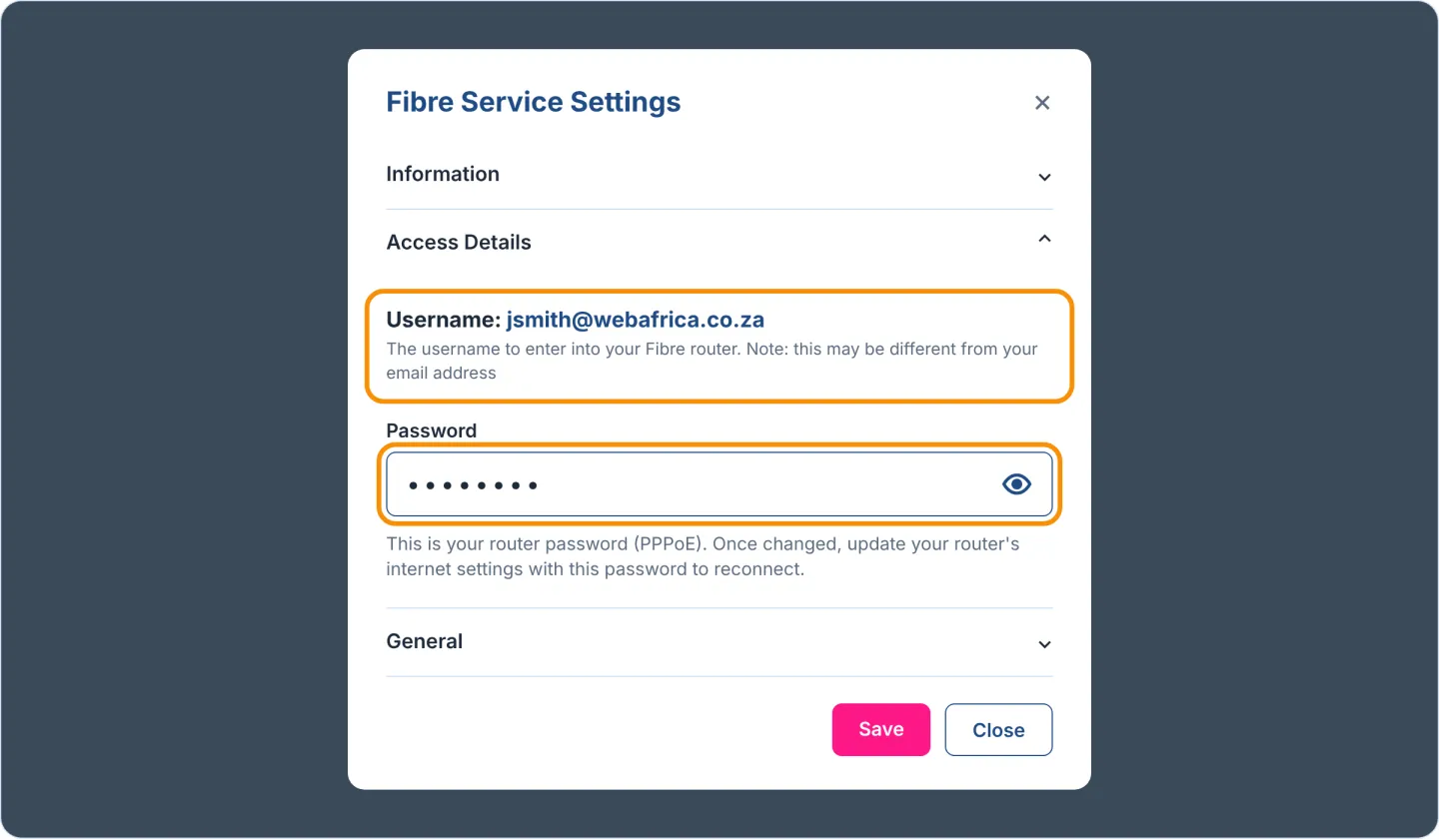
Your fibre username may be different from your email address. Always use the full username shown under Access Details, including the part after the @, on your router.
Can I change my router password?
Yes. Type a new password in the Password box under Access Details and click Save.
Once you've changed your password, update your router's internet settings with the new password. Your router won't connect until you do.
How do I use these details on my router?
Log in to your router's settings page, go to the internet or WAN settings and pop your username and password into the PPPoE connection. Our router guides show you how.
Was this article helpful?