
What Is a Static IP and How Do I Get One?
A Static IP is a fixed public IP address linked to your Webafrica Fibre Service. Unlike a standard dynamic IP, it stays the same when your router restarts or reconnects, which makes it perfect for remote access, VPNs, security cameras and hosting. It's available on qualifying FTTH and FTTB Fibre Services (not Vumatel, Vuma Reach, Vuma Key, Openserve Web Connect, ADSL or LTE/5G). Add it in Customer Zone under Just For You, then replace the part of your router username after the @ with wastatic to connect. It's a month-to-month add-on with one calendar month's notice to cancel.
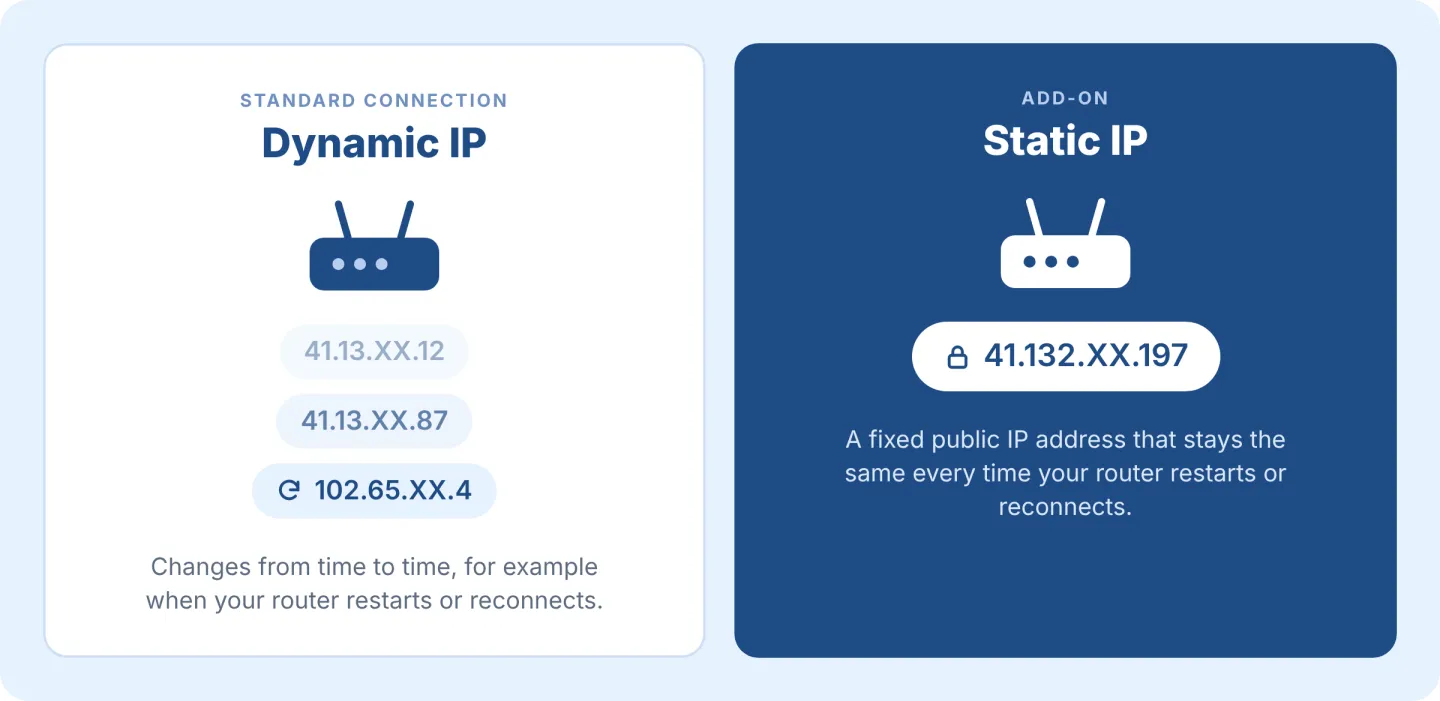
What is a Static IP?
Every internet connection has a public IP address. Think of it as your router's street address on the internet.
Standard Fibre connections use a dynamic IP, which changes every now and then, like when your router restarts or reconnects. A Static IP is a permanent, fixed public IP address for your connection. It never changes, so your devices and services always know where to find you.
What can I use a Static IP for?
A Static IP comes in handy when something needs to reach your connection, or recognise it, at the same address every time:
- Remote working and VPNs: connect to office systems that only let in approved IP addresses.
- Security cameras and smart devices: check your CCTV, NVR/DVR or smart-home gadgets while you're out, without the feed dropping when your IP changes.
- Remote access: get to your NAS, file server or computer at home or in the office.
- Hosting: run low-volume services like a game server or small website.
- Business tools: run VoIP or PBX systems and other apps that need a fixed address.
If you just browse, stream and game online, you don't need a Static IP. Your standard connection would not need a Static IP for these services.
Who can get a Static IP?
You can add a Static IP if you have a qualifying Webafrica Fibre Service:
- Available on: FTTH (Fibre to the Home) and FTTB (Fibre to the Business) on qualifying Services
- Not available on: Vumatel, Vuma Reach, Vuma Key, Openserve Web Connect, ADSL and LTE/5G
You can have one Static IP per Fibre Service.
Static IP only shows under Just For You in Customer Zone if you have a qualifying Fibre Service. Don't see it there? Your current Service doesn't qualify. You can check which Services are available at your address on the Webafrica website.
Not sure who your fibre provider is? It's in the Service description in Customer Zone.
How do I activate a Static IP?
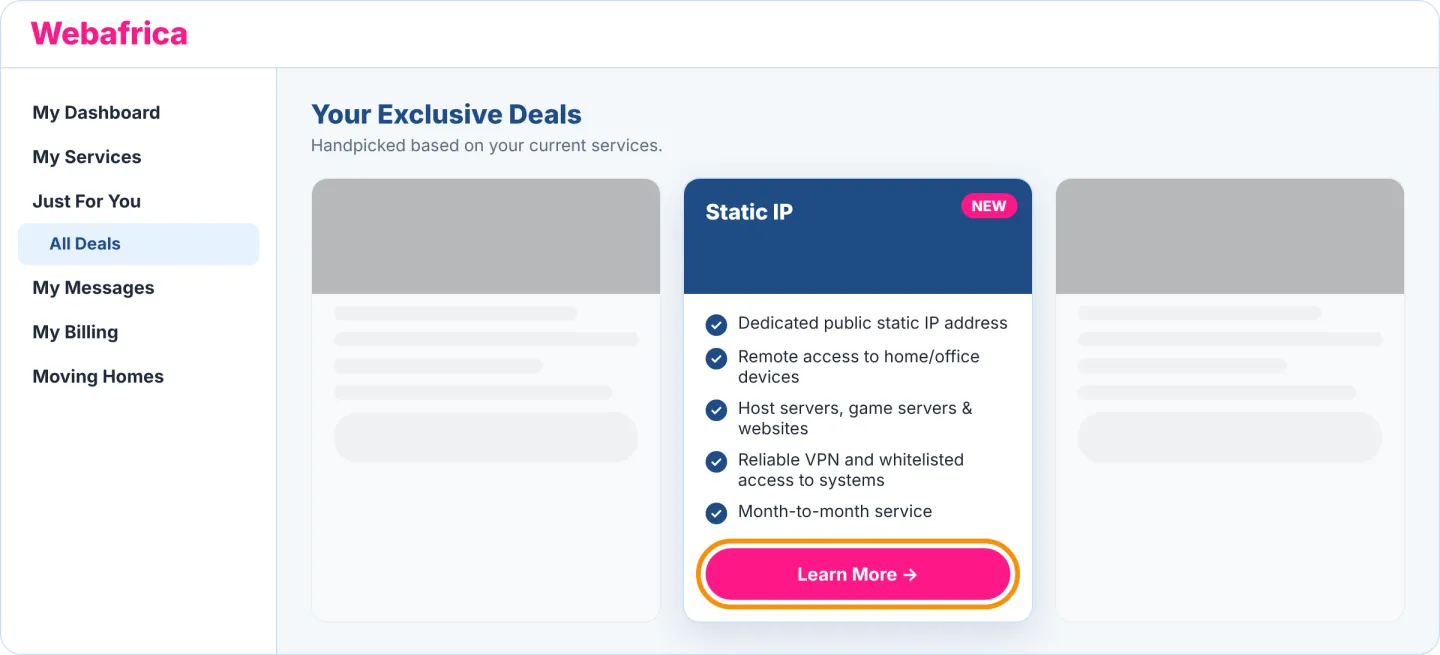
- Log in to Customer Zone and go to Just For You.
- Under Your Exclusive Deals, find Static IP and click Learn More.
- Have a look at the Service details and click Order Now.
- Under Link to Your Connectivity Service, choose the Fibre Service you want the Static IP linked to. You'll only need to choose if you have more than one Fibre Service.
- Accept the Terms & Conditions and click Confirm Order.
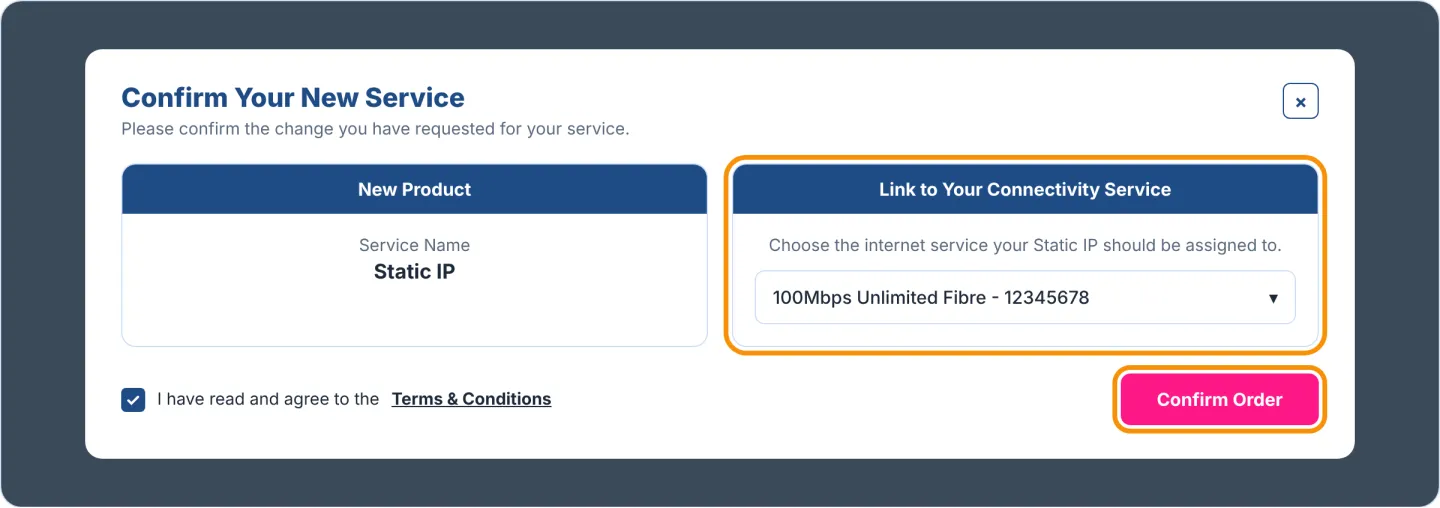
Your Static IP is activated almost immediately, and we'll send you an SMS and email once it's ready.
Do I need to change my router settings?
Yes. Your Static IP only kicks in once your router connects with your Static IP username. To get it, replace the part of your current username after the @ with wastatic. Your password stays the same.
Not sure what your current username is? Have a look at How to find your fibre username and password.
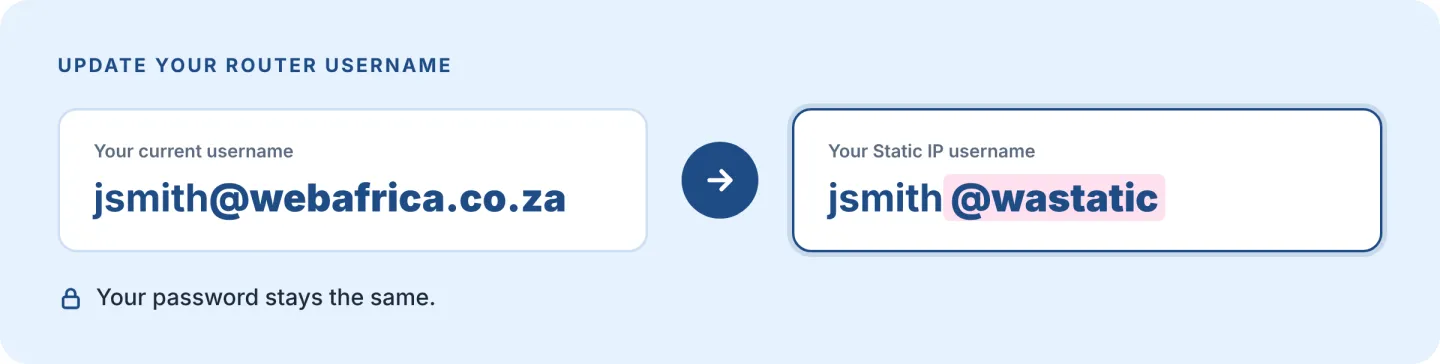
Write down your current username before you change it. If you ever cancel your Static IP, you'll need to switch back to exactly that username.
Once your router reconnects with the new username, your Static IP is assigned. It stays the same every time your router restarts or reconnects.
Moving Homes? Your Static IP add-on moves with you, because it's linked to your username. Your Static IP address itself may change at your new address, or if a network change makes it necessary.
How to change the username on your router
These steps work on most routers. The menu names may be slightly different on yours.
- Connect a computer or phone to your router, using its WiFi or a network cable.
- Open a web browser and type your router's address into the address bar. You'll usually find it on the sticker on the back or bottom of your router, for example 192.168.1.1 or 192.168.0.1.
- Log in with your router's admin username and password. These are usually on the same sticker, unless you've changed them.
- Go to your internet settings. Depending on your router, this may be called Internet, WAN, Broadband or Network. Look for the connection that uses PPPoE, where your username and password are saved.
- In the Username field, replace everything after the @ with wastatic. Leave your password as it is.
- Click Save or Apply, then restart your router.
Not connecting after the change? Check that the username is typed exactly, with no spaces, and that @wastatic is spelt correctly.
Need help finding these settings on your router? Have a look at our router guides, or check your router's manual or the manufacturer's website.
Where can I see my Static IP?
Your Static IP shows in Customer Zone once it's active and your router has connected with your Static IP username.
- Log in to Customer Zone and go to My Services > All Services. You can also use the shortcut under Your Services on My Dashboard.
- Click the view icon next to your Fibre Service. You'll see Static IP Add On listed with it.
- Under Included Services, your Static IP shows next to RADIUS Static IP Service.
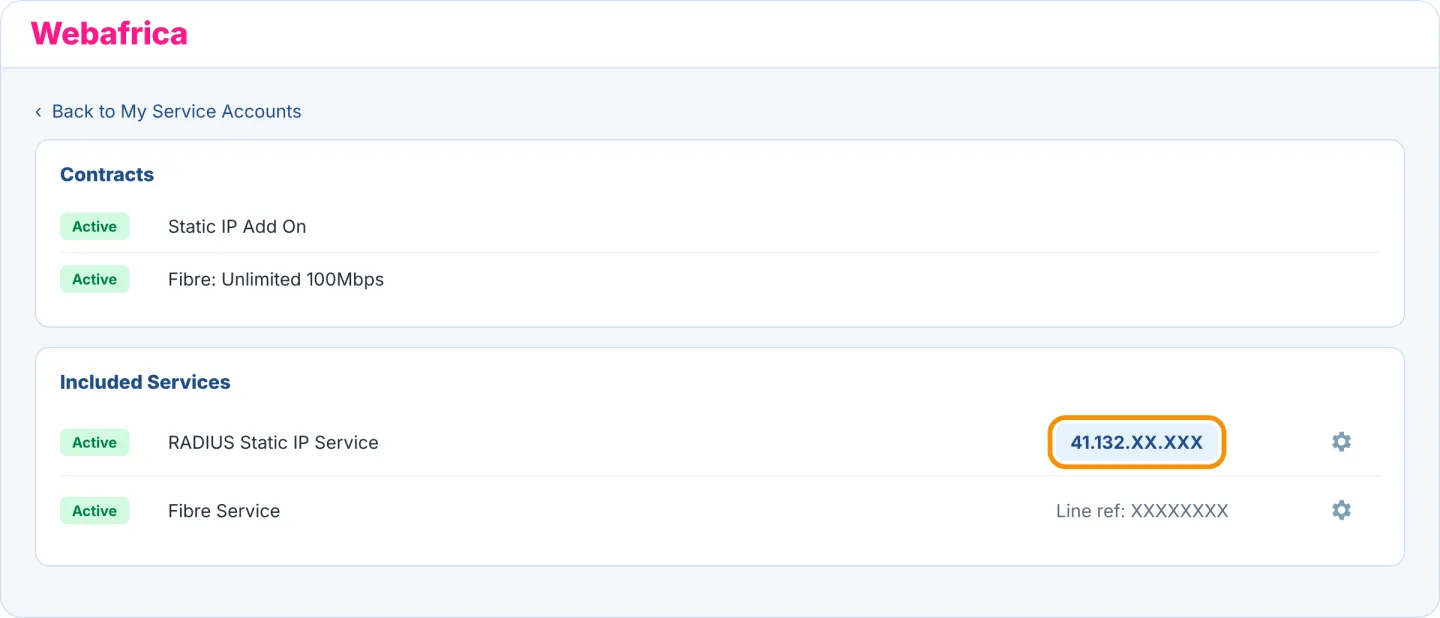
Seeing N/A instead of an IP address? Your router hasn't connected with your Static IP username yet. Check that you've updated the username on your router, then restart it.
What does Webafrica support on a Static IP?
Static IP support is best-effort. We support:
- assigning your Static IP
- your connection to the Webafrica network
We don't provide support for:
- setting up your Static IP on your own network, including on your router (whether Webafrica supplied it or you did)
- apps or services you host yourself
- your firewall settings
- third-party VPN solutions
- external devices connecting to your Static IP
- advanced troubleshooting of servers you host yourself
Acceptable use
You may not use your Static IP for unlawful activities, spam distribution, malicious activity, distributed denial-of-service (DDoS) attacks, illegal content hosting, or any activity that compromises network security or stability.
We may suspend your Static IP where reasonably necessary to address suspected abuse, unlawful activity or a security risk, and this may take effect immediately. We'll contact you and, where appropriate, give you an opportunity to resolve the issue before your service is restored.
For the full terms, see the Static IP Address Terms and Conditions.
What happens if I cancel?
Your Static IP is a month-to-month add-on. You can cancel it in Customer Zone any time, with one calendar month's notice.
- Log in to Customer Zone and go to My Services > All Services.
- Click the view icon next to your Fibre Service.
- Click the bin icon at the bottom of the page.
- Under What do you want to cancel, choose Other (Value Added Service).
- Under Select Product, choose Static IP, then follow the prompts to finish your cancellation.
Once your Static IP is cancelled, change your router username back to exactly what it was before you switched to @wastatic. If you don't, you won't be able to browse and will see a login landing page instead. You'll find your standard username in Customer Zone: see How to find your fibre username and password.
Cancelling your Fibre Service? Your Static IP is linked to it, so cancelling your Fibre Service also ends your Static IP. You don't need to cancel it separately.
Was this article helpful?