
Set up your Webafrica email account on your iPhone in just a few minutes.
This guide will walk you through adding your email account using the built-in Mail app on iPhone.
We recommend using IMAP so your emails stay synced across all your devices.
Before You Start
Make sure you have:
✅ Your full email address (example: name@webafrica.org.za)
✅ Your email password
✅ An internet connection (wifi or mobile data)
You will also need these mail server settings:
| Setting | Value |
|---|---|
| Incoming Mail Server | mail.webafrica.org.za |
| Outgoing Mail Server (SMTP) | smtp.webafrica.org.za |
| Username | Your full email address |
| Password | Your email password |
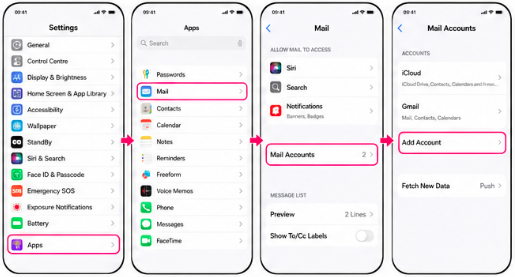
Step 1: Open Mail Settings
- Open Settings on your iPhone
- Scroll down and tap Apps
- Tap Mail
- Tap Mail Accounts
- Tap Add Account
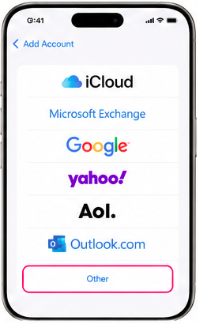
Step 2: Select Other
Tap Other at the bottom of the account list.
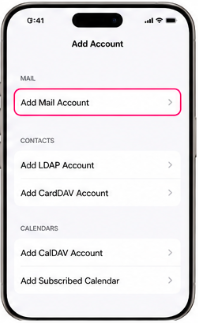
Step 3: Add a Mail Account
Tap Add Mail Account.
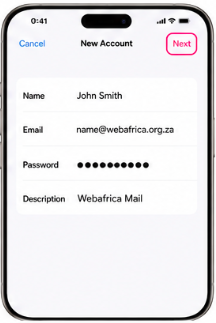
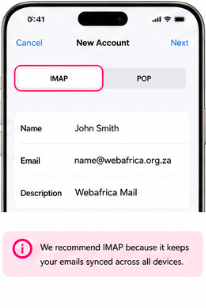
Step 4: Enter Your Email Details
Enter the following:
Name
The name people will see when you send emails
Email
Your full Webafrica email address
Password
Your email password
Description
A name for the account, for example: Webafrica Mail
Tap Next.
Step 5: Select IMAP
At the top of the screen, select IMAP.
We recommend IMAP because it keeps your emails synced across all your devices.
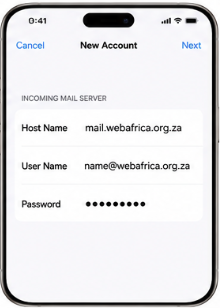
Step 6: Enter Incoming Mail Server Settings
Under Incoming Mail Server, enter:
Host Namemail.webafrica.org.za
User Name
Your full email address
Password
Your email password
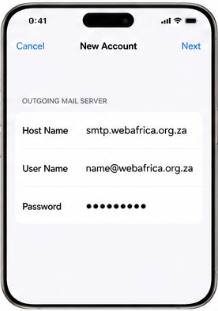
Step 7: Enter Outgoing Mail Server Settings
Under Outgoing Mail Server, enter:
Host Namesmtp.webafrica.org.za
User Name
Your full email address
Password
Your email password
Tap Next.
Your iPhone may take a few moments to verify the settings.
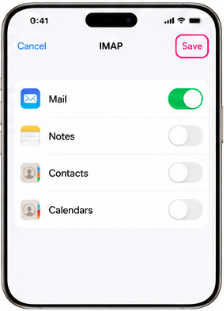
Step 8: Save Your Account
Make sure Mail is enabled and tap Save.
You’re Done
Open the Mail app, and your Webafrica mailbox should start syncing automatically.
If your mailbox is large, it may take a few minutes for older emails to appear.
Common Questions
My Emails Are Not Downloading
Double-check:
- Your email address is entered correctly
- Your password is correct
- Incoming server:
mail.webafrica.org.za - Outgoing server:
smtp.webafrica.org.za
Why Should I Use IMAP?
IMAP keeps your emails synced across devices.
For example:
- Read an email on your iPhone → it shows as read on Webmail
- Delete an email on your laptop → it syncs to your phone
This makes IMAP the best option for most customers.