
Losing important emails is never fun. Creating a backup of your mailbox helps protect important messages, folders, contacts, and attachments if you change devices, reinstall software, or accidentally delete something.
The easiest way to back up your Webafrica email is by using an email app such as Microsoft Outlook or Thunderbird.
Why Should I Back Up My Email?
Backing up your mailbox helps you:
✅ Keep a copy of important emails and attachments
✅ Move your email to a new computer
✅ Protect yourself against accidental deletion
✅ Keep a local copy of your mailbox for safekeeping
Option 1: Back Up Your Mailbox in Microsoft Outlook (Recommended)
If your Webafrica email account is added to Outlook, you can export a backup file of your mailbox.
Step 1: Open Outlook
Launch Microsoft Outlook on your computer.
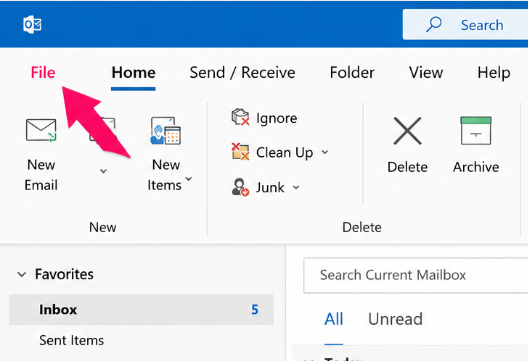
Step 2: Go to File
Click File in the top-left corner.
Step 3: Open Export Options
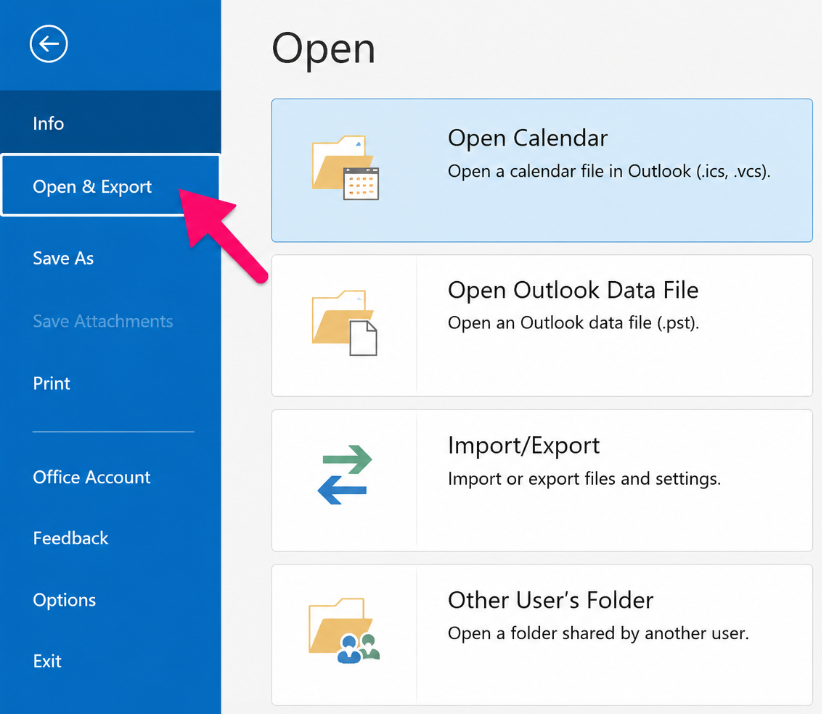
Select:
Open & Export > Import/Export
Step 4: Choose Export
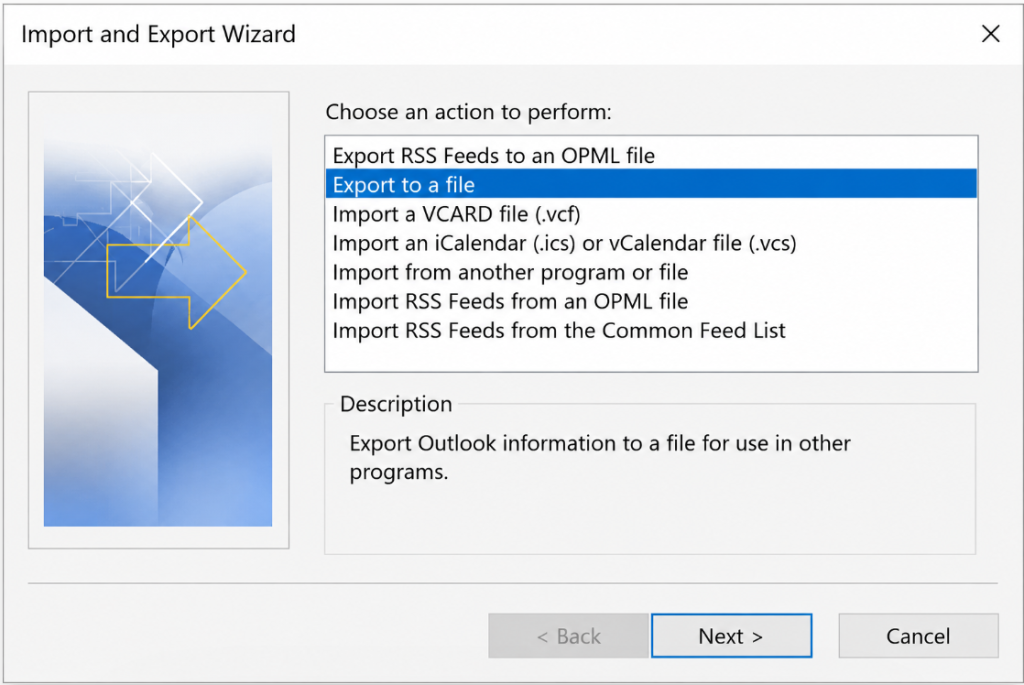
Select:
Export to a file
Then click Next.
Step 5: Select File Type
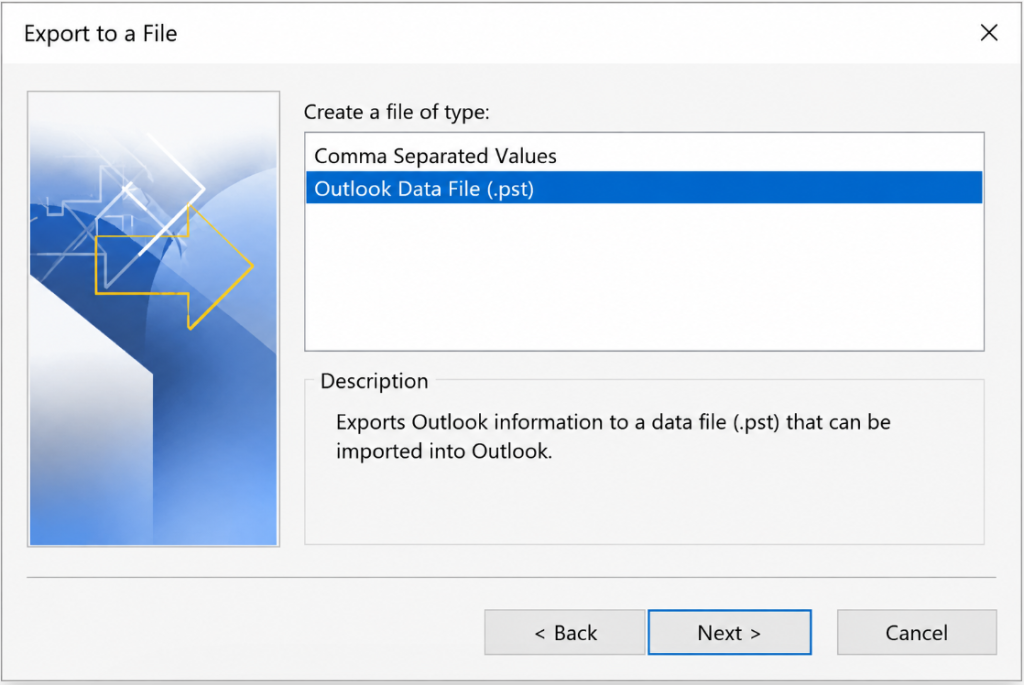
Choose:
Outlook Data File (.pst)
Then click Next.
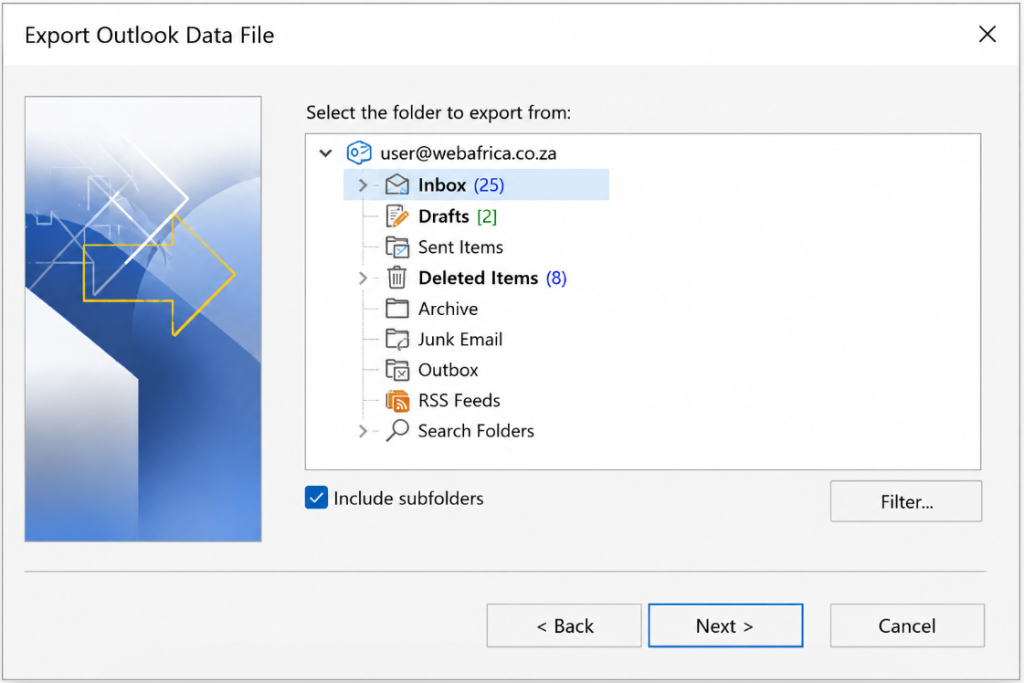
Step 6: Choose Your Mailbox
Select the email account you want to back up.
Tick:
✅ Include subfolders
This ensures your Inbox, Sent Items, folders, and archived mail are included.
Click Next.
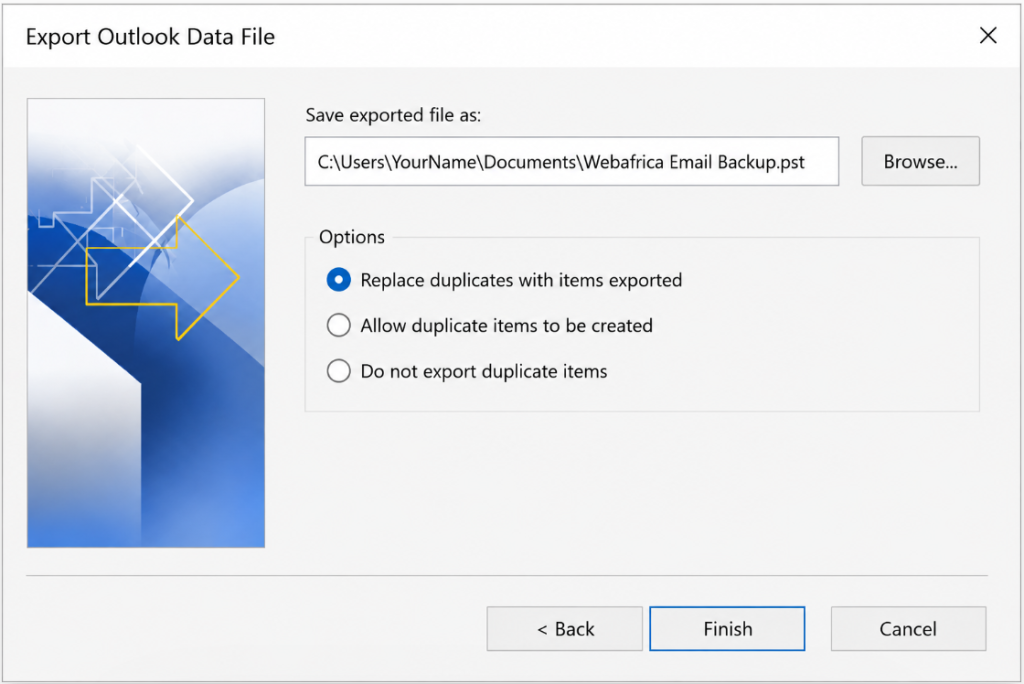
Step 7: Choose Where to Save the Backup
Click Browse and choose where you want to save the backup file.
For example:
- Desktop
- Documents
- External hard drive
- Cloud storage folder
Give the file a name such as:
Webafrica Email Backup
Click Finish.
Step 8: Wait for the Backup to Complete
Outlook will create a backup file ending in:
.pst
Keep this file somewhere safe.
You can later restore this file in Outlook if needed.
Option 2: Keep a Local Copy of Your Email
If you use an email app like Outlook or Thunderbird with IMAP, your emails are normally synced to your device automatically.
To make sure older emails stay available offline:
- Open your email application regularly so it can sync
- Avoid deleting local data files
- Consider making periodic backups if the mailbox contains important information
Tips for Safe Email Backups
✔ Back up important mail regularly
✔ Save backups somewhere secure
✔ Keep a copy on an external drive or cloud storage
✔ Do not rename or edit backup files after exporting
Frequently Asked Questions
Will backing up my email delete anything?
No. A backup simply creates a copy of your mailbox.
Can I open my backup later?
Yes. Outlook backup files (.pst) can be opened or restored in Outlook.
How often should I back up my mailbox?
If you use email often or store important information, monthly backups are recommended.